You can initiate the work-based application process in a third-party application which is synchronised with Dynamics 365 for learners matched to a course vacancy, without a pre-existing EBS record.
 Process flow illustration
The following diagram illustrates the interaction between Dynamics 365 and EBS for a work-based, third-party application.
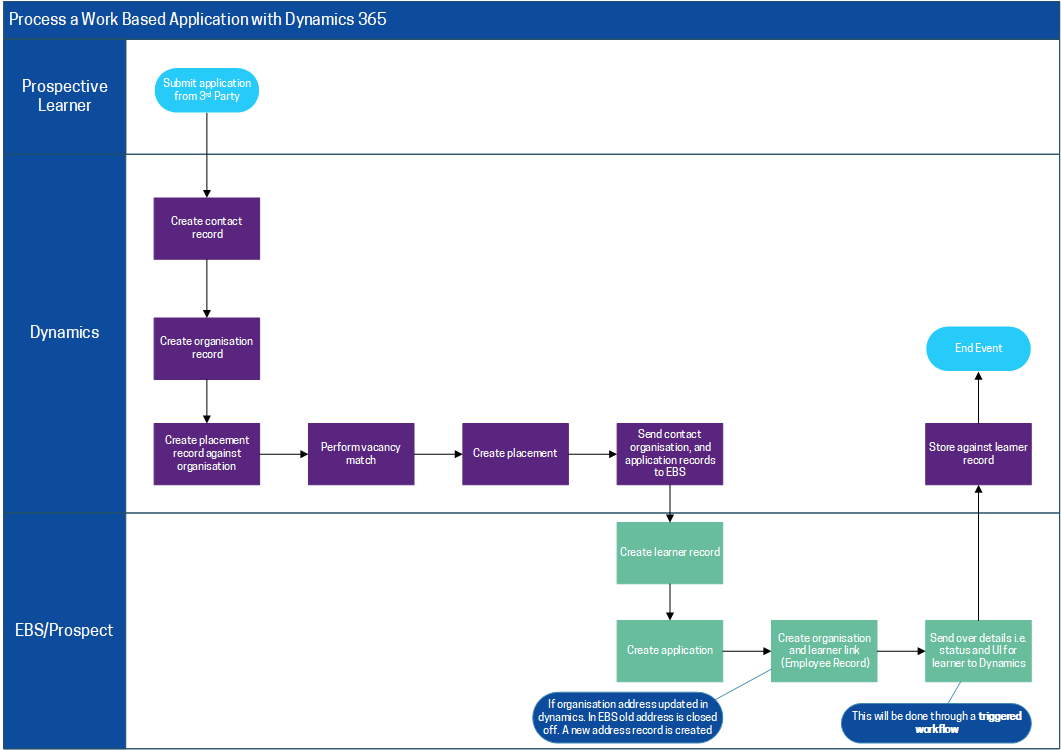
To process an apprenticeship application with Dynamics 365:
-
Create a Vacancy record in Dynamics 365 and export to the relevant third-party application.
The candidate creates a new registration in the third-party application and applies for the vacancy.
The registration details are imported into Dynamics 365 as a Contact record, linked to the vacancy, and as a vacancy match record linked to the vacancy.
Important.The vacancy match record is used to progress the candidate through the application process, until the candidate has been accepted. Once accepted a placement record is generated.
-
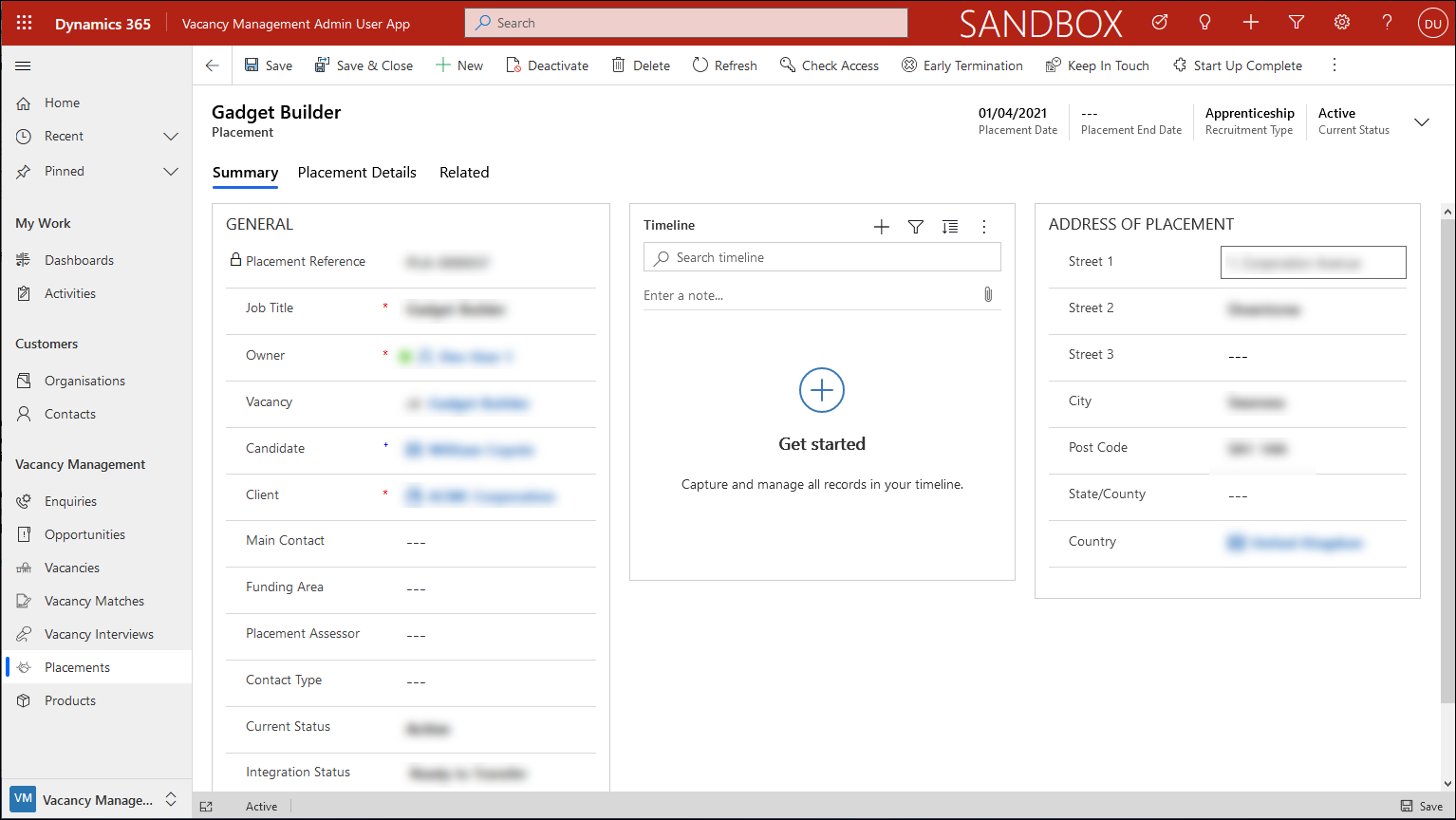
Open the relevant Placement record in Dynamics 365 (accessed by selecting the Placements option from the left-hand menu), once placement of the contact at the vacancy has been confirmed, or the candidate has been placed at another vacancy.
The Placement screen is displayed.
-
Select the Placement Details tab.
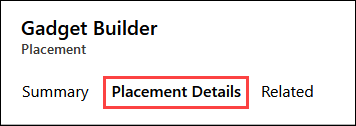
The Placement Details tab is displayed.
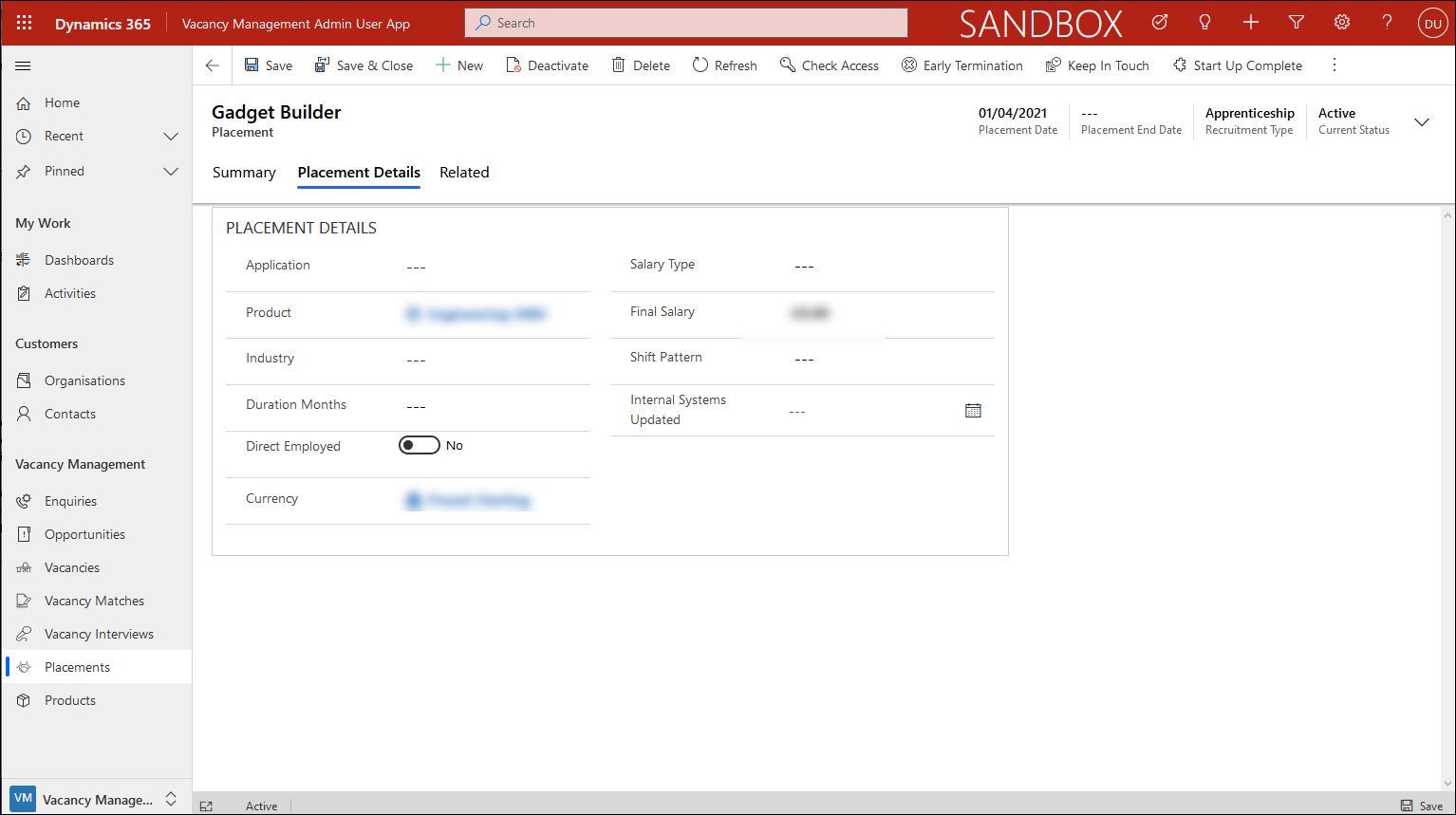
-
Enter a value into either the Application field or the Product field.
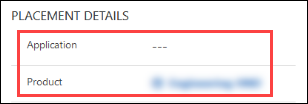
-
Select the Summary tab.
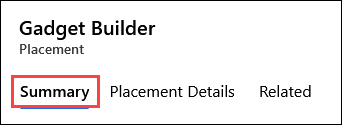
The Summary tab is displayed.
-
Set the Integration Status field to 'Ready to Transfer'.
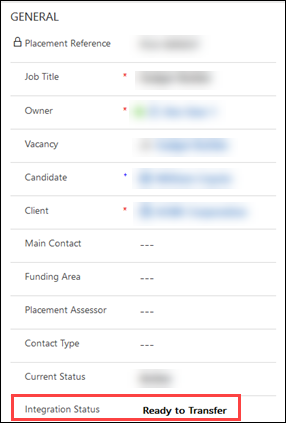
The relevant workflow hook submits the placement data to EBS Central.
The following records are created in EBS Central:
-
Learner record - linked to the new organisation
-
Application record
-
Organisation - refer to Manage Organisations for more information about adding a learner to an organisation
-
-
Open the relevant learner record using the Learner Search in EBS Central.
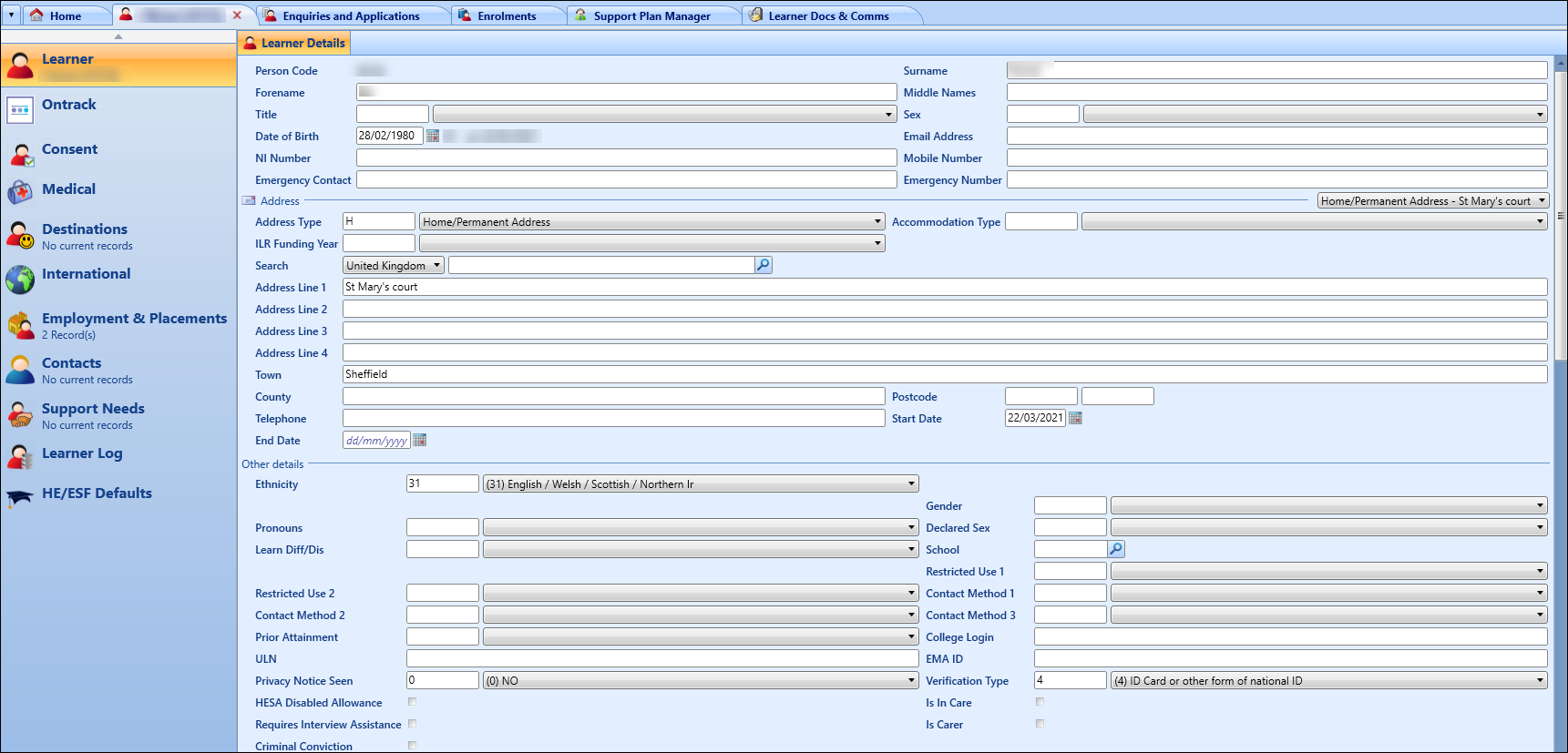
-
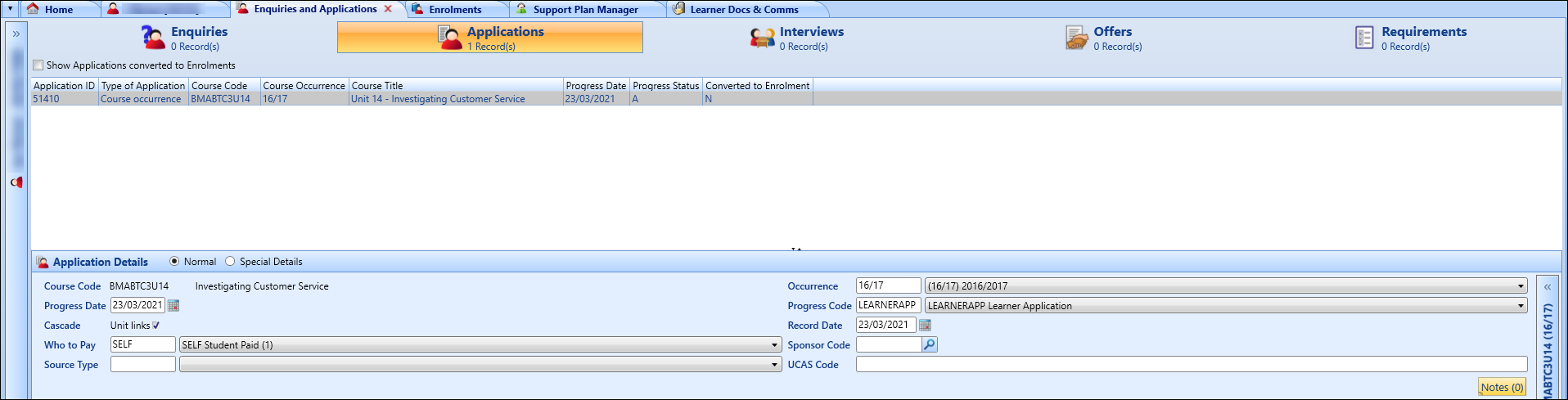
Select the Enquires and Applications tab.
The Enquiries and Applications module is displayed.
-
Convert the relevant application to an enrolment.
Important.Refer to Convert Applications to Enrolments for further information.The relevant workflow hook submits the enrolment to Dynamics 365.
-
Select Enrolments from the Customer section of the left-hand menu to view the relevant enrolment in Dynamics 365.