You can restrict the columns displayed in the wideboy, for example: to show only those required for a given return type. The LLWR module provides a number of built-in configurations, which can be selected from the list in the Columns group of the LLWR Commands ribbon.
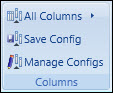
The following default column configurations are available:
- All Columns
- Adult Community Learning
- Further Education
- Work Based Learning
You can manage column configurations as follows:
 Create column configurations
Institutions can create their own column configurations. To do this, ensure that the set of columns currently displayed are the required set of columns, and then select the Save Config button on the LLWR Commands ribbon.
The Save Column Configuration window is displayed.
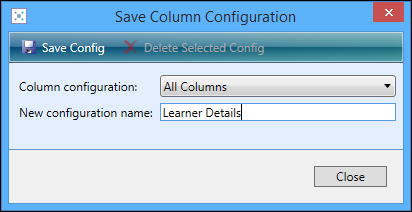
Enter a name for the new column configuration and then select the Save Config button. The new column configuration is then saved to the EBS database.
The current configuration name will now be available for selection in the list of stored configurations. When you close the LLWR wideboy these configurations are stored and the next time the dataset is selected, the last used configuration is chosen automatically. The configurations are stored against your username in the database, so that they are accessible regardless of which machine the user logs in from.
Save column configurations
You can save any configuration for re-use. To do this, select the Save Config button on the ribbon.
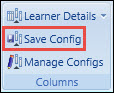
In the Save Column Configuration window that is displayed, enter a name for the new configuration, and then select the Save Config button.
Delete column configurations
To delete a column configuration that has previously been created, select the Manage Configs button.
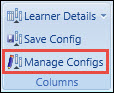
On the Column Configuration Manager window that is displayed, select the Delete Selected Config button.
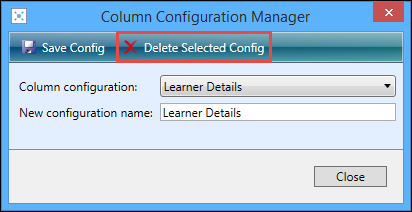
You will be prompted to confirm the deletion. Select Yes to confirm the deletion, or No to cancel.