Ontrack Learner Hub lets you create enrolments for courses that are available at your institution. If you choose to enrol from your institution’s website, you’re redirected to the Ontrack Learner Hub sign‑in page. After signing in, you can begin your enrolment.
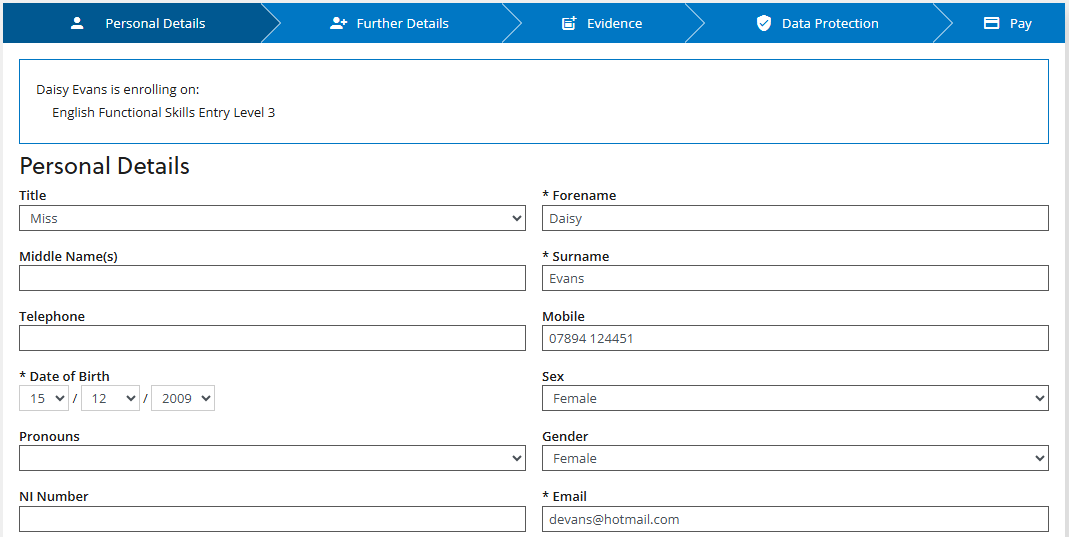
The enrolment form collects the personal information your institution needs. For example, the image Enrolments shows part of the personal‑details section for a learner enrolling on an English Functional Skills course.
Oversubscribed courses
If a course has more applicants than places, your institution may manage this in one of two ways:
-
You may be able to join a waiting list.
-
You may not be able to enrol.
You’re also prevented from enrolling if you don’t meet the course prerequisites.
Validation and partial enrolments
When the system checks your selected courses, you can continue with any courses that pass validation. Selecting continue takes you to the personal details page.
Viewing enrolments
After an enrolment record is saved, it appears on your Enrolments page. This page lists your enrolments and shows the progress status for each one.
From the Enrolments page, you can:
-
Select or drop courses.
-
Manage your consent settings under data protection.
-
Manage fees under finances.
Resume enrolments
If you start an enrolment but don’t finish it, such as when a payment doesn’t go through, you’ll see a link in the next steps section on the homepage. This link lets you return to your enrolment. You’ll also receive an email with a link so you can continue.
When you resume an enrolment, you return to the stage you previously reached. For example, if you entered your account details but didn’t complete your consent settings, you return to the data protection page.