You can view, add and delete qualifications on the Qualifications page in Ontrack Learner Hub.
Select the Qualifications option in the navigation pane to view a list of qualifications.
This will display the Qualifications page.
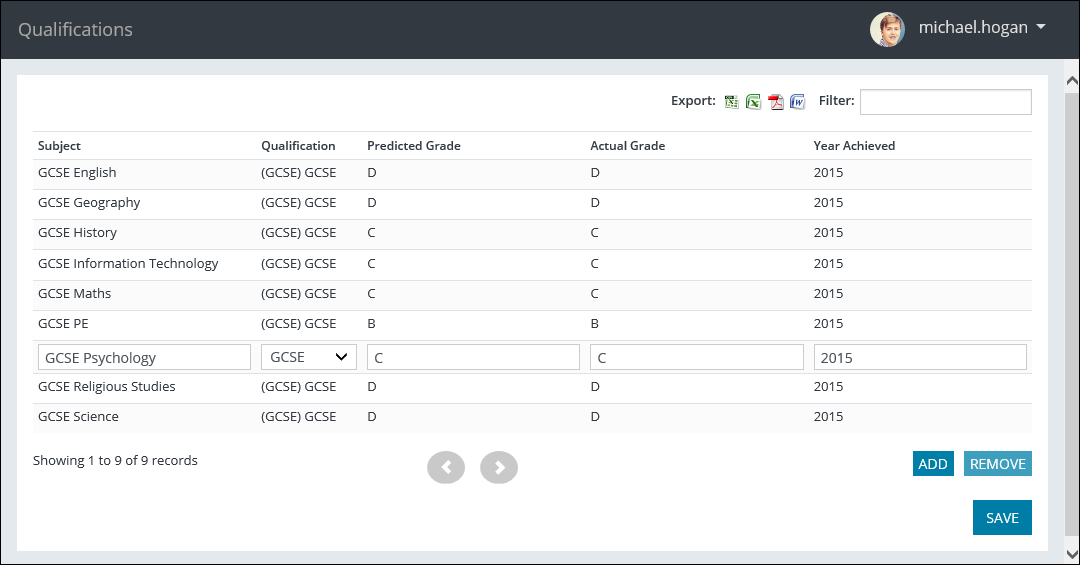
From this page, you can:
 Add qualifications
-
Select the Add button.

The Row added message is displayed.
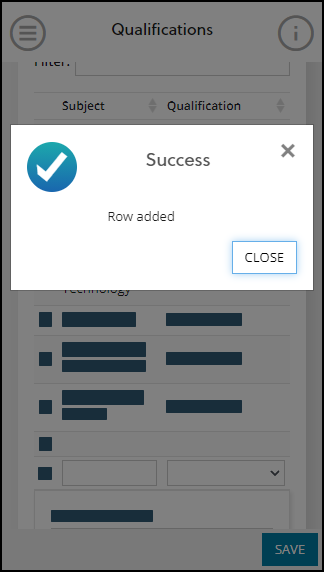
A new row is entered in the grid.

- Enter the required details for the qualification.
The fields on the Qualifications page are described in the following table.
| This field | Holds this information... |
|---|---|
| Subject | The subject. |
| Qualification | The qualification type. |
| Predicted Grade | The predicted grade. |
| Actual Grade | The actual grade. |
| Year Achieved | The year the qualification was achieved. |
-
Select the Save button.

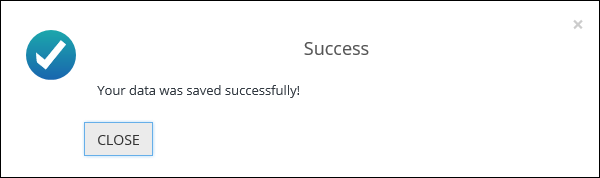
This will display a confirmation message.
-
Select Close to close the message.
The qualification is added and displayed in the grid on the Qualifications page.
Delete qualifications
-
Select the qualification you want to delete in the grid on the Qualifications page, and then select the Remove button.

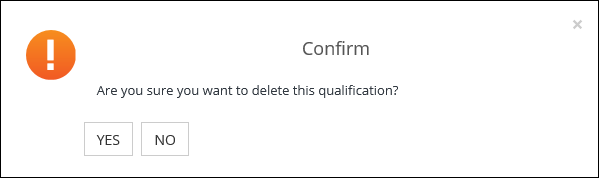
A message will display for you to confirm the deletion.
-
Select Yes .
This will display a confirmation message.
Important.An error message will display and deletion prevented if the record has a grade, an outcome, is in progress or a course option is linked to the main course.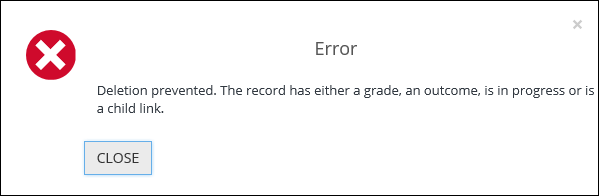
-
Select Close to close the message.
The qualification is deleted and removed from the grid on the Qualifications page.
Edit or delete your qualifications
You can edit or delete qualifications you have entered with an actual grade on the Qualifications page.
The qualification records that you have added can be edited or deleted as follows:
- To edit a qualification record, update the required record and then select the Save button
- To delete a qualification record, select the required record and then select the Remove button
