Use the Org Docs & Comms tab in the organisation management module to view, add, and maintain document records for the current organisation. The Org Docs & Comms tab is controlled by the EBS4OrgComms licence.
To view organisation documents and communications, select the Org Docs & Comms tab.

The Org Docs & Comms tab is displayed, with the General Documents page listing document records for the selected organisation.
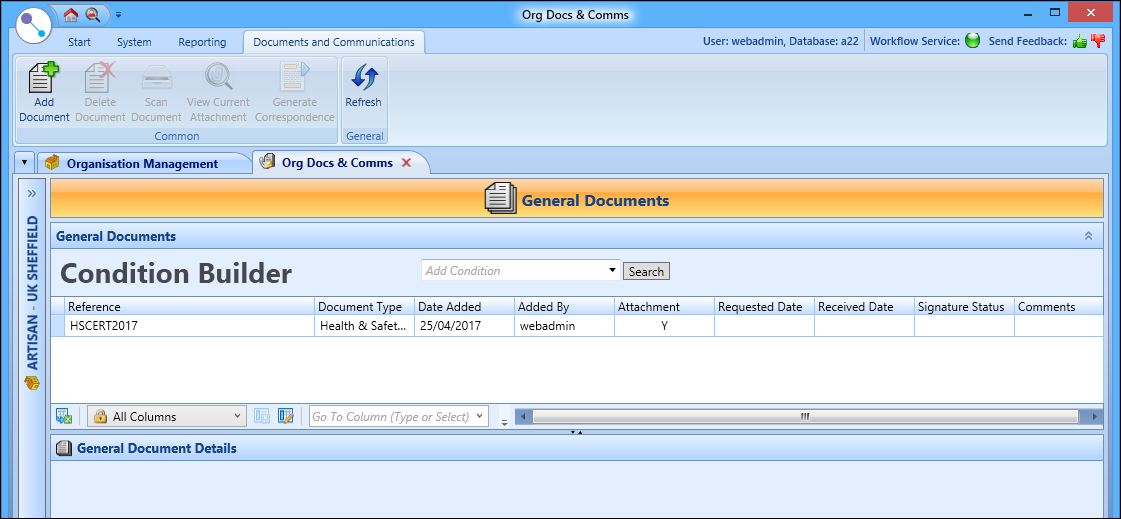
You can use the condition builder on the Org Docs & Comms tab to filter the documents to display in the General Documents grid.

You can search using one, or a combination of the following fields:
- Reference
- Document Type
- Date Added
- Added By
- Attachment
When you have entered the required criteria, select the Search button to start the search.
From the Org Docs & Comms tab, you can:
 View organisation details
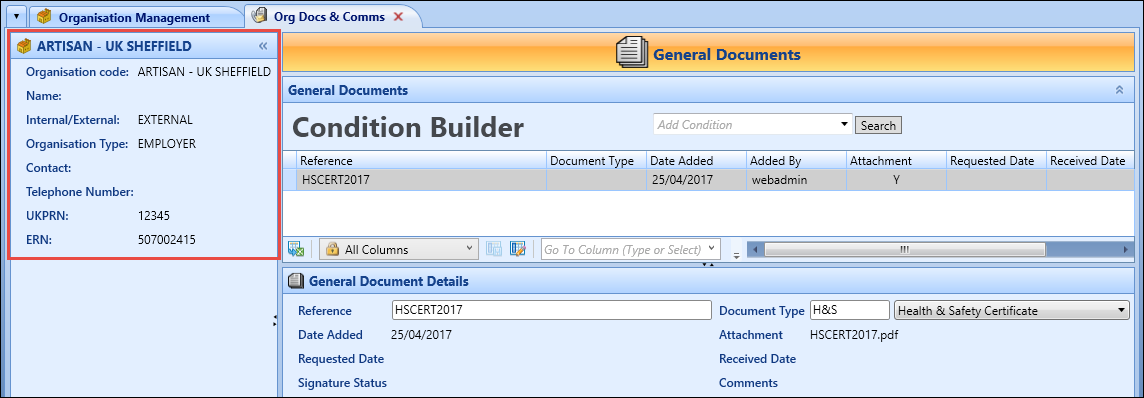
You can view details of the selected organisation in the Organisation panel.
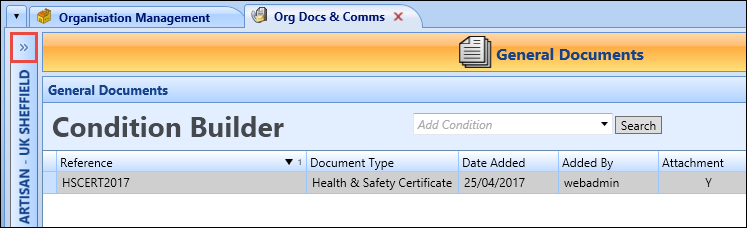
To view the Organisation panel, select the Expand button on the left-hand side of the screen.
The Organisation panel will display details of the selected organisation in a read-only view.
Add documents
You can add document records providing that the document type is configured for organisations in the Document Types reference data.
To add a document:
-
Select the Add Document button on the Documents and Communications ribbon.
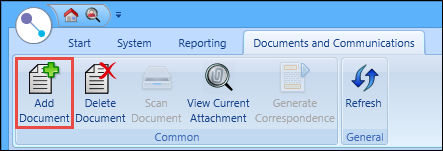
A row is added to the General Documents grid.

-
Enter the details for the document in the General Document Details section.

The fields in the General Document Details section are described in the following table.
| This field | Holds this information... |
|---|---|
| Reference | The reference number of the document record. |
| Document Type | The document type. Select from the drop-down list. Organisation document type records are set up in the Document Types reference data. |
| Date Added | The date the document record was added (read-only). This defaults to the current system date. |
| Attachment | You must add an attachment to the document record. Select the Upload File button to display the Open window, where you can select the required file. |
| Requested Date | This field is not applicable for organisation documents. |
| Received Date | This field is not applicable for organisation documents. |
| Signature Status | This field is not applicable for organisation documents. |
| Comments | This field is not applicable for organisation documents. |
-
Select Save .
The document record is added.
Delete documents
To delete a document:
-
Select the required document record in the General Documents grid.

-
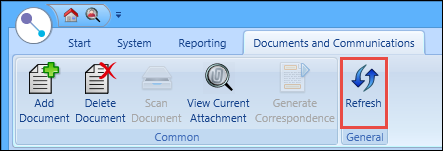
Select the Delete Document button on the Documents and Communications ribbon.
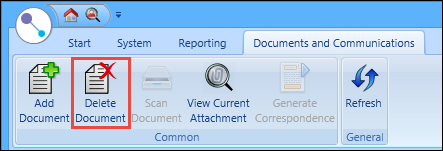
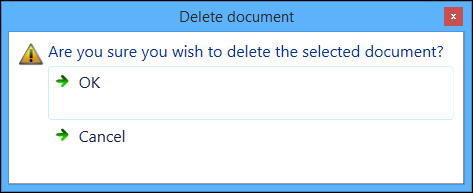
The Delete Document message is displayed.
-
Select OK .
The document record and attached file are deleted.
View document attachments
To view the document attached to a record:
-
Select the required document record in the General Documents grid.
-
Select the View Current Attachment button on the Documents and Communications ribbon.
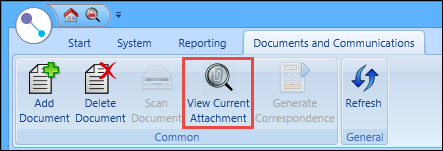 Important.Alternatively, select the document record in the General Documents grid.
The Org Docs & Comms window is displayed.
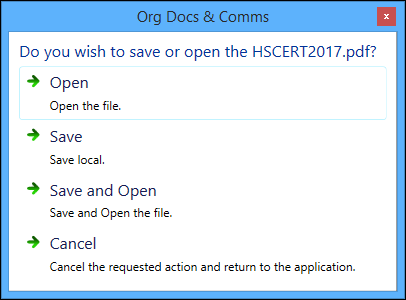
- Select one of the following options:
- Open - opens the attached file in the appropriate program (for example: Adobe Reader)
- Save - displays the Save As window, where you can save the file to the required location
- Save and Open - displays the Save As window, where you can save the file to the required location, and then opens the file
- Cancel - closes the Org Docs & Comms window with no other action