Ontrack Changes for 4.38
The following changes have been made to Ontrack for 4.38:
Designer
 Power BI Chart control added
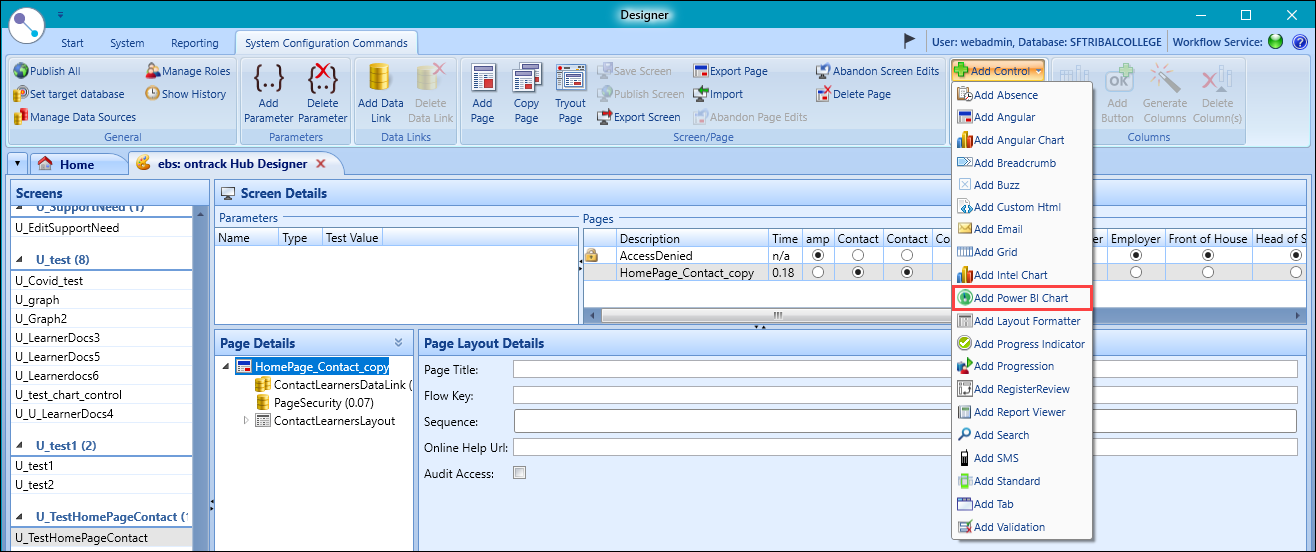
The Power BI Chart control can now be added in EBS Ontrack Designer (for users with the PowerBIConnector licence) by selecting Add Power BI Chart from the Add Control drop-down on the System Configuration Commands ribbon.
Ontrack Hub
Attendance link removed for parents or contacts accessing Ontrack Staff Hub
The Attendance link has been removed from the homepage for parents or contacts accessing Ontrack Staff Hub.
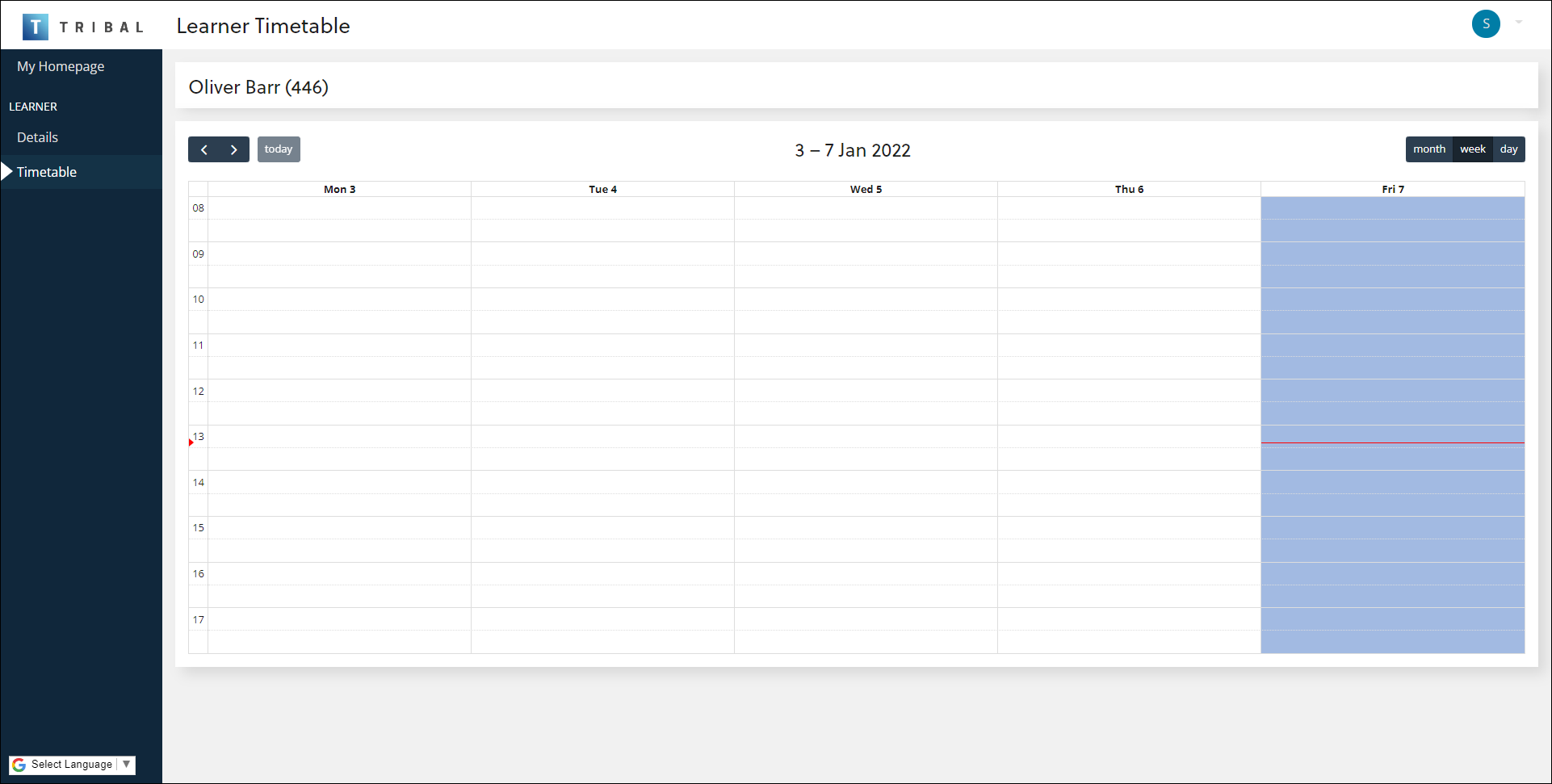
Change to the Learner Timetable screen for parents or contacts accessing Ontrack Staff Hub
The way the timetable is displayed on the Learner Timetable screen has been updated for parents or contacts accessing Ontrack Staff Hub.
Attendance Reporting added
Refer to Attendance Reporting Changes for 4.38 for further information.
ILP changes
Refer to ILP Changes for 4.38 for further information.
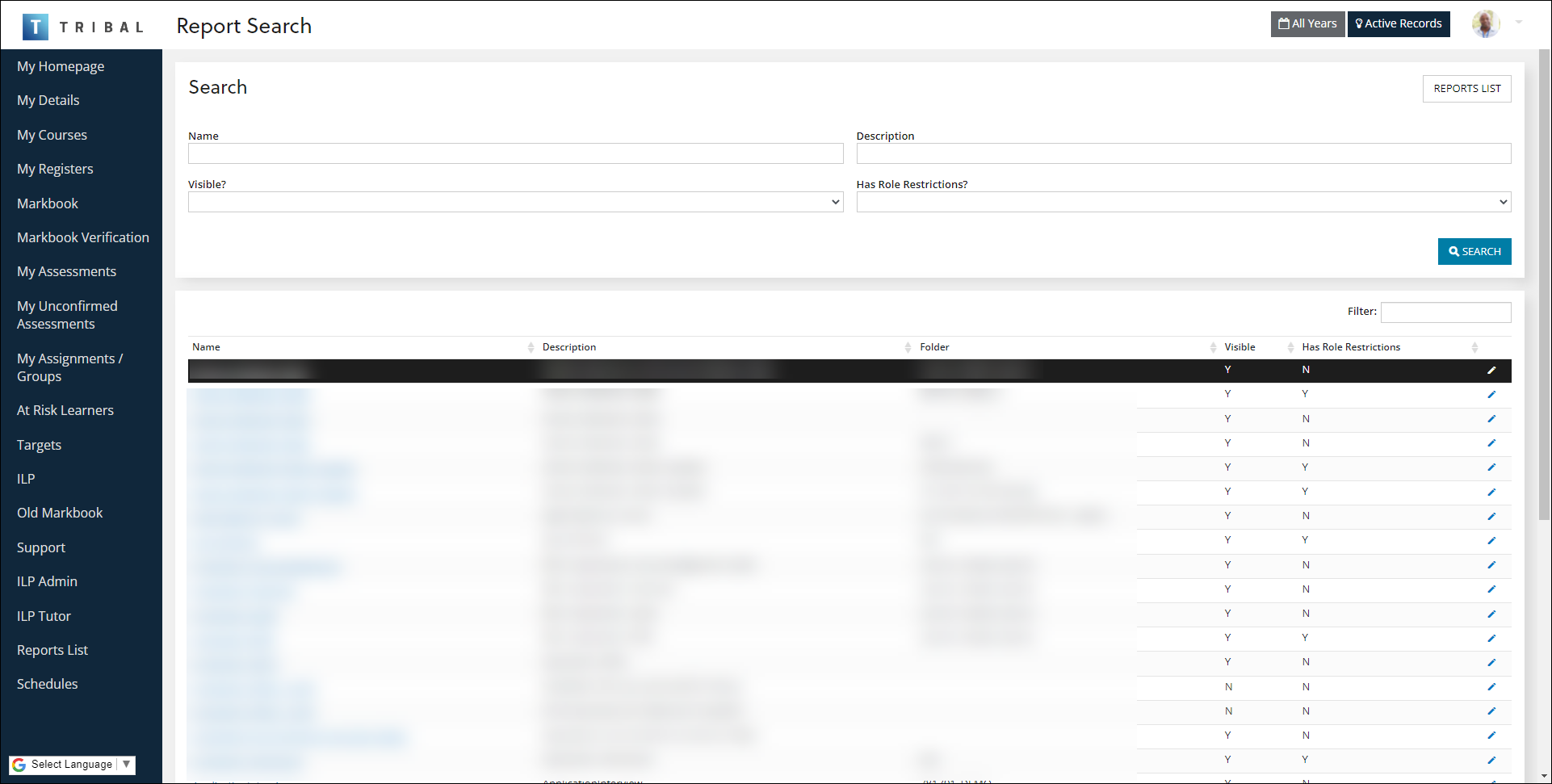
Ability to search for reports
The Reports Search screen has been added, allowing you to find a specific report if you do not know where the report is located.
Reports Homepage changes
The Reports screen (accessed by selecting the Reports option in the header menu) has been renamed to Reports Homepage.
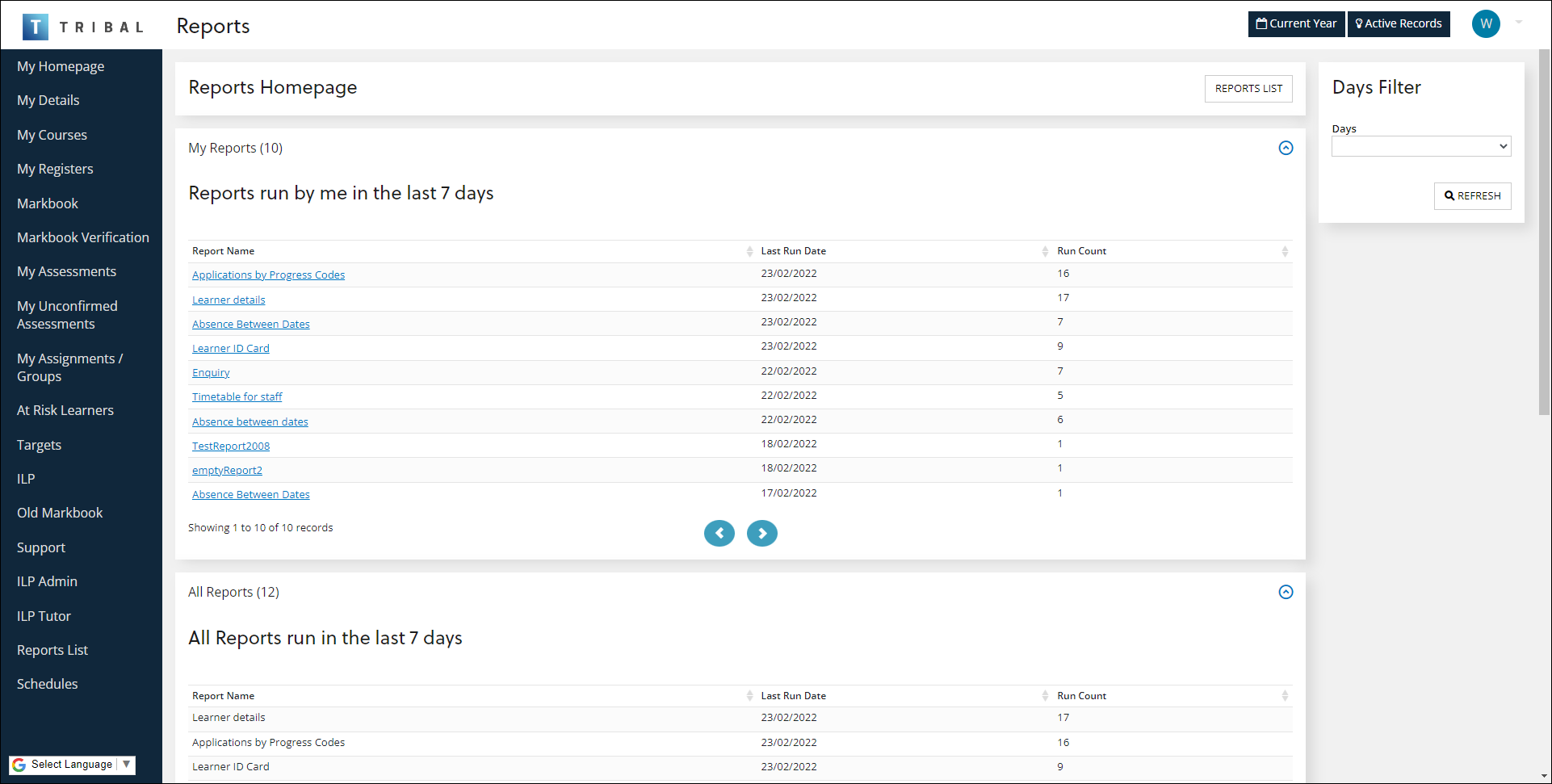
The following changes have been made to the Reports Homepage:
-
The Run in the last 7 days section has been renamed Reports run by me in the last 7 days
-
The Run in the last 7 days section has been renamed All reports run in the last 7 days
-
The In the last 7 days section has been renamed All reports not run in the last 7 days
By default, reports, all reports, and reports not run or run in the last seven days are displayed. The days displayed can be amended by selecting from the Days filter and then selecting the Refresh button in the Days Filter panel, if required. -
The Reports List button has been added
Reports List changes
The Reports List screen (accessed by selecting the Reports option in the header menu, then selecting the Reports List option in the left-hand panel) has been updated.
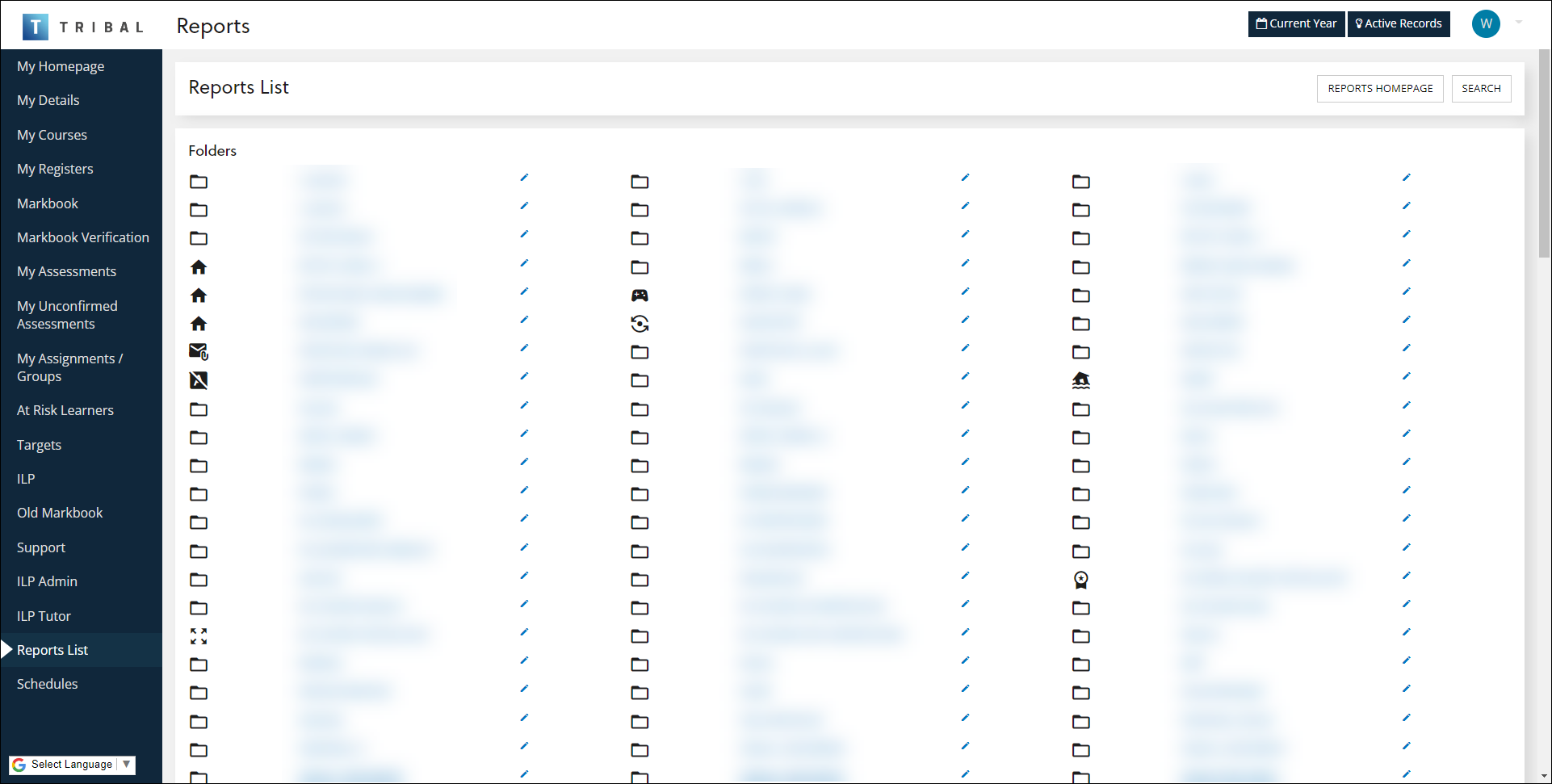
The following changes have been made to the Reports List screen:
-
The Reports List section has been added
-
The REPORTS HOMEPAGE button has been added
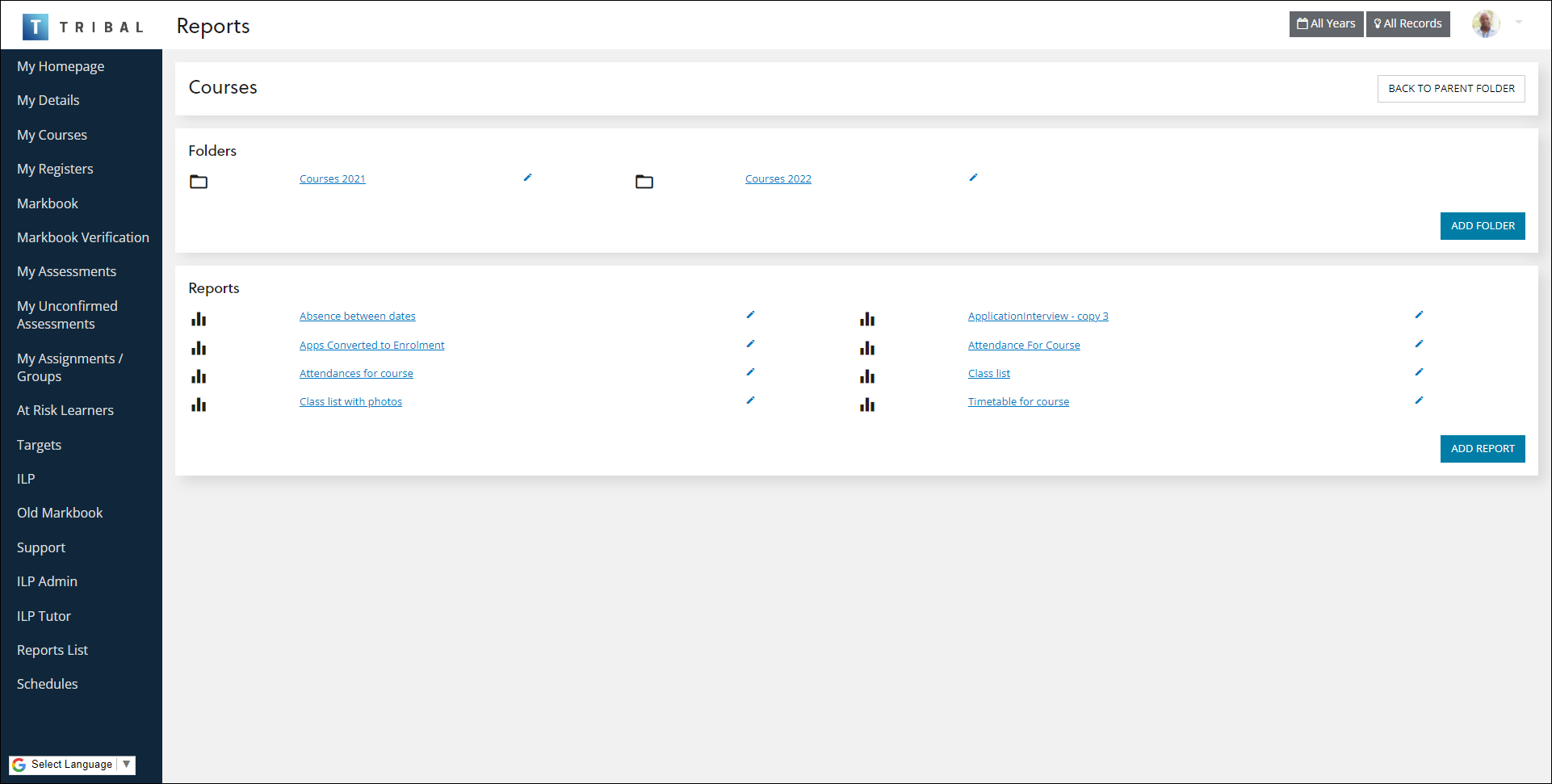
The following changes have been made to sub-folder screens:
-
The Homepage button has been removed
-
The BACK TO PARENT FOLDER button has been added
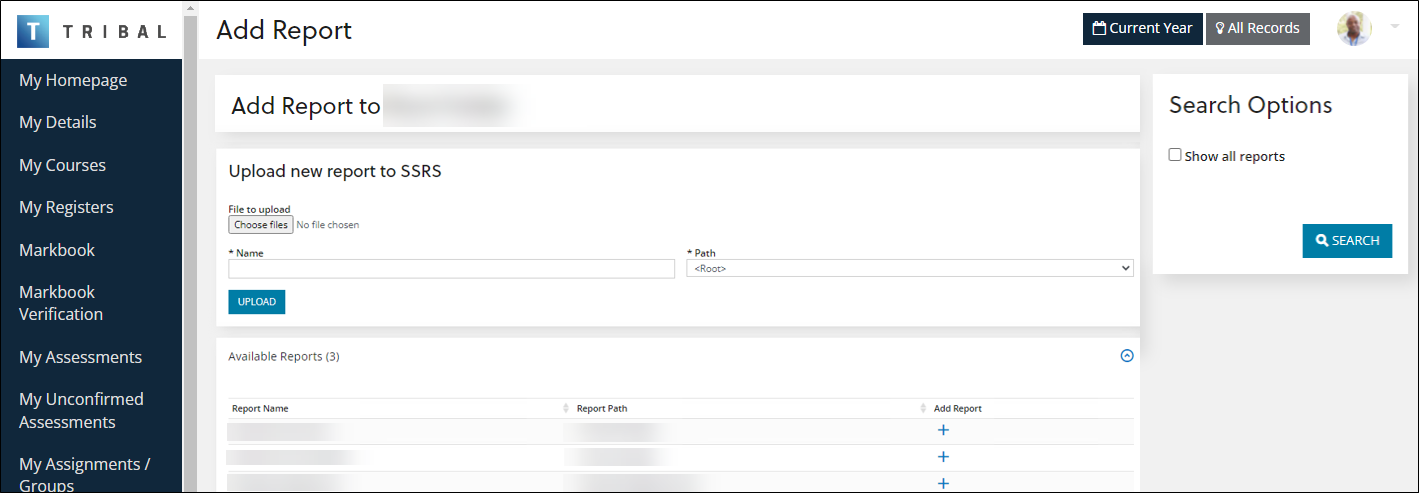
Ability to upload a report to SSRS
The Upload new report to SSRS section has been added to the Add Report screen where users with the Reports Administrator role can upload reports to SQL Server Reporting Services (SSRS).
Select Choose files to search for the relevant report in the Report Definition Language (.RDL) file format.
Report generation changes
Reports generated in Ontrack Staff Hub are generated in the format specified in the Report Type field in the Column Details section of EBS Ontrack Hub Designer.
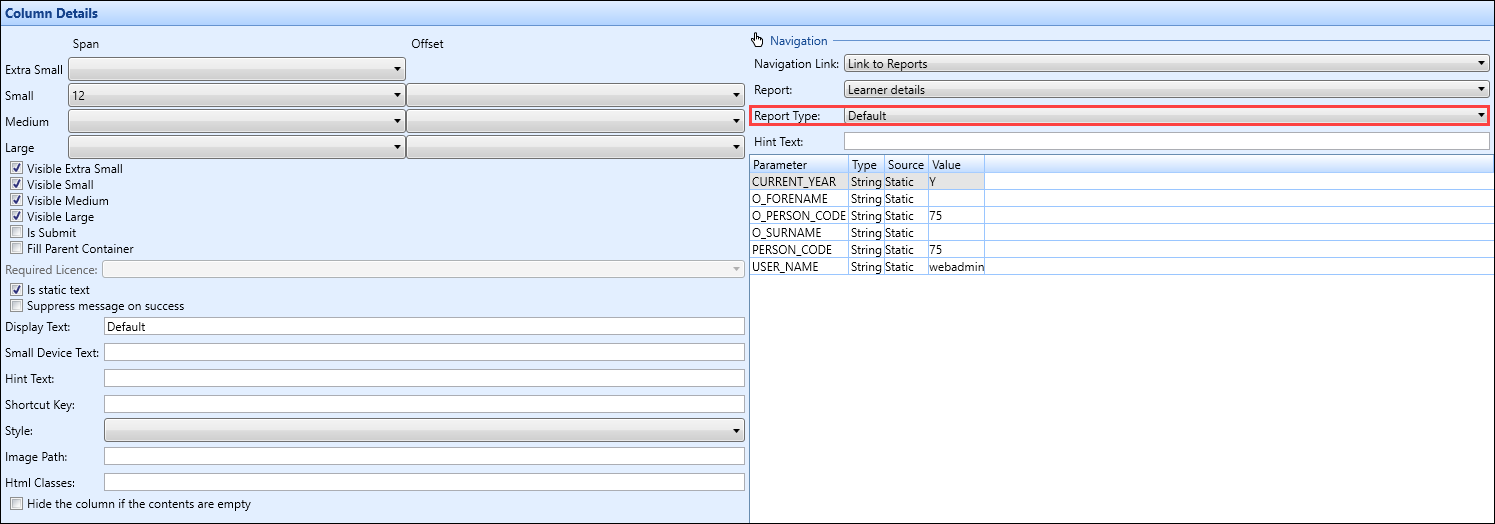
Available formats:
-
Default
-
XLS (Excel)
-
DOC (Word)
-
PDF (Acrobat)
Ability to email reports
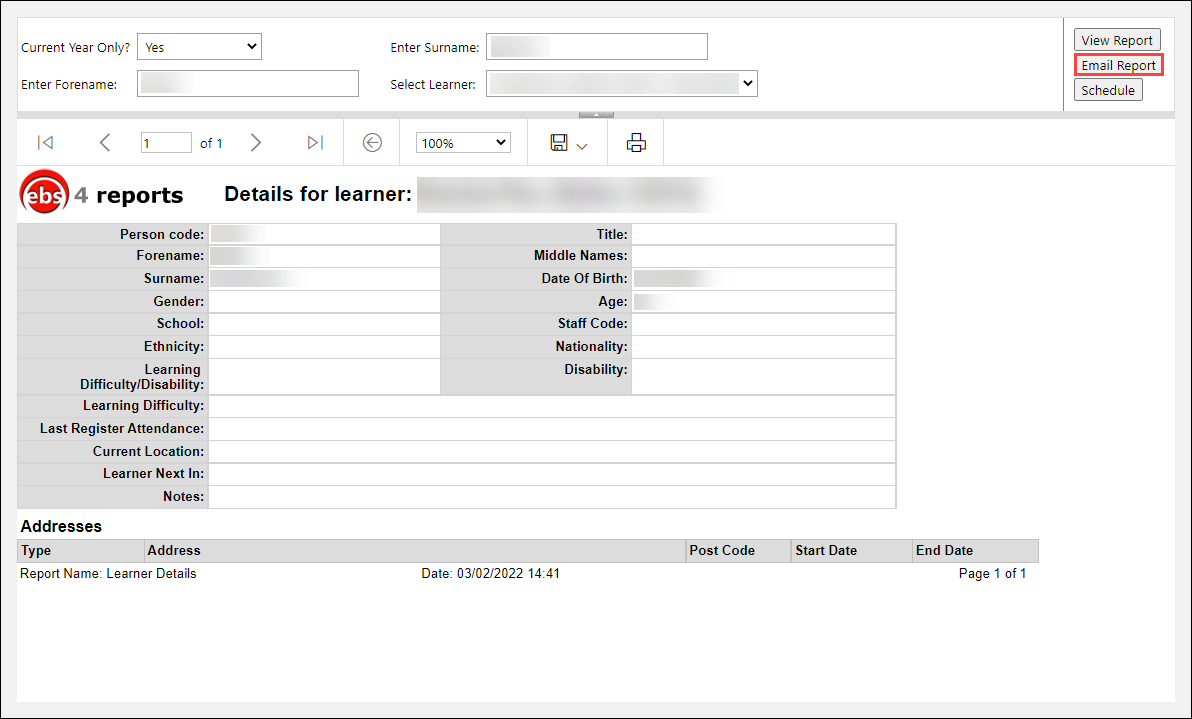
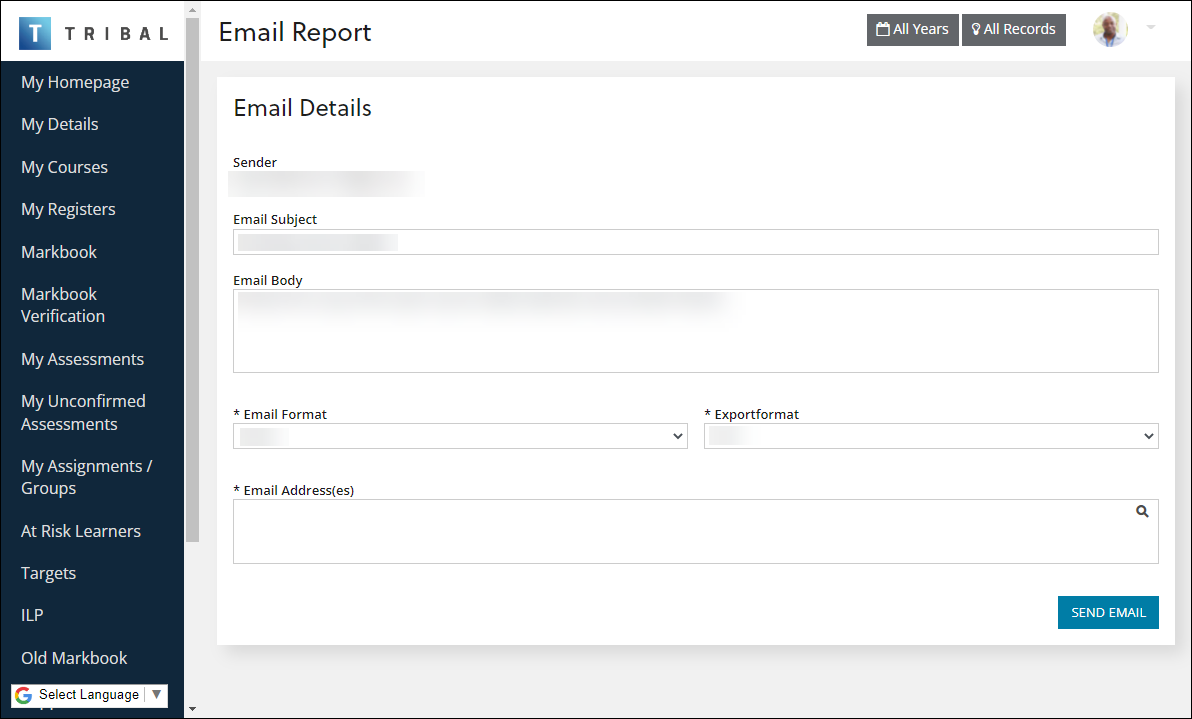
Users with the Reports User role can email reports (accessed from the Reports option in the header menu) to learners and members of staff.
You can use the Email Report screen to enter the relevant information.
Ability to schedule reports
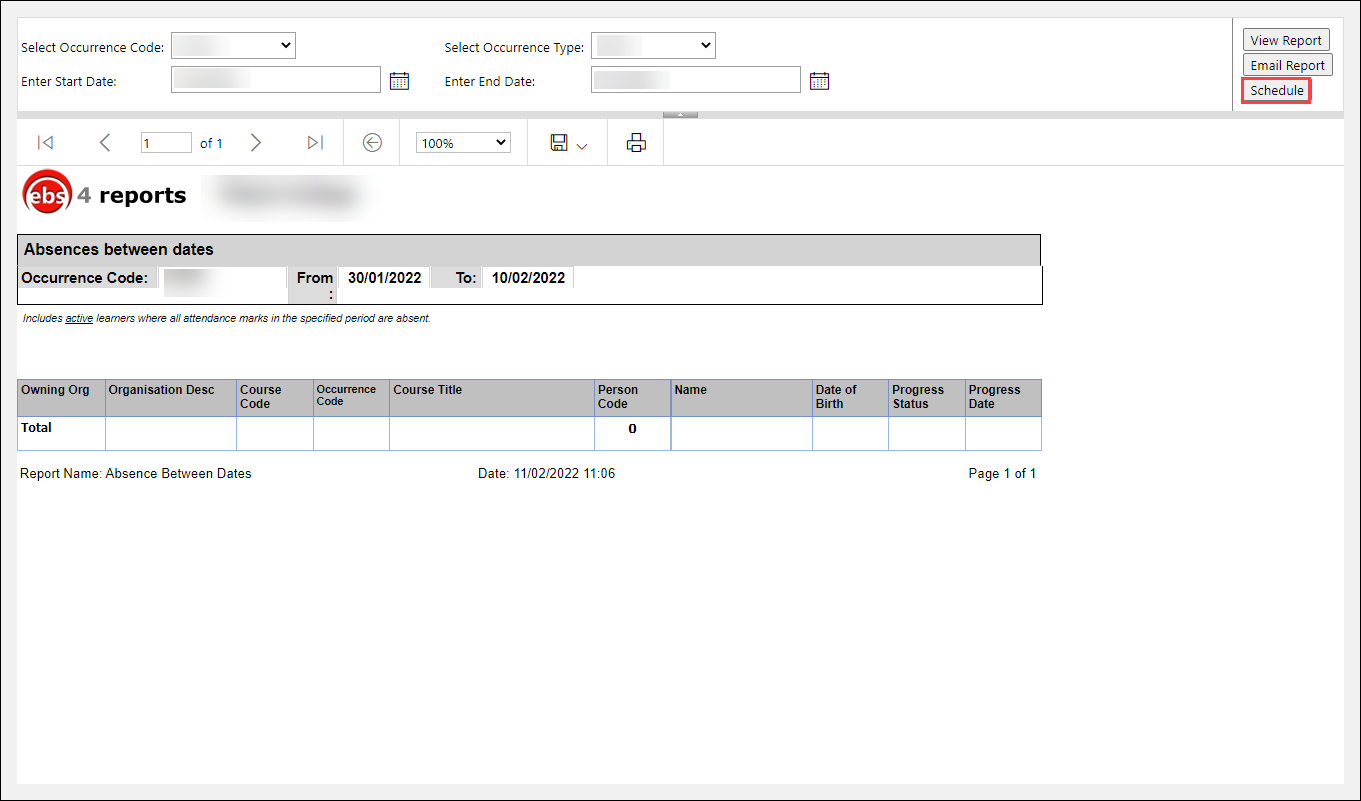
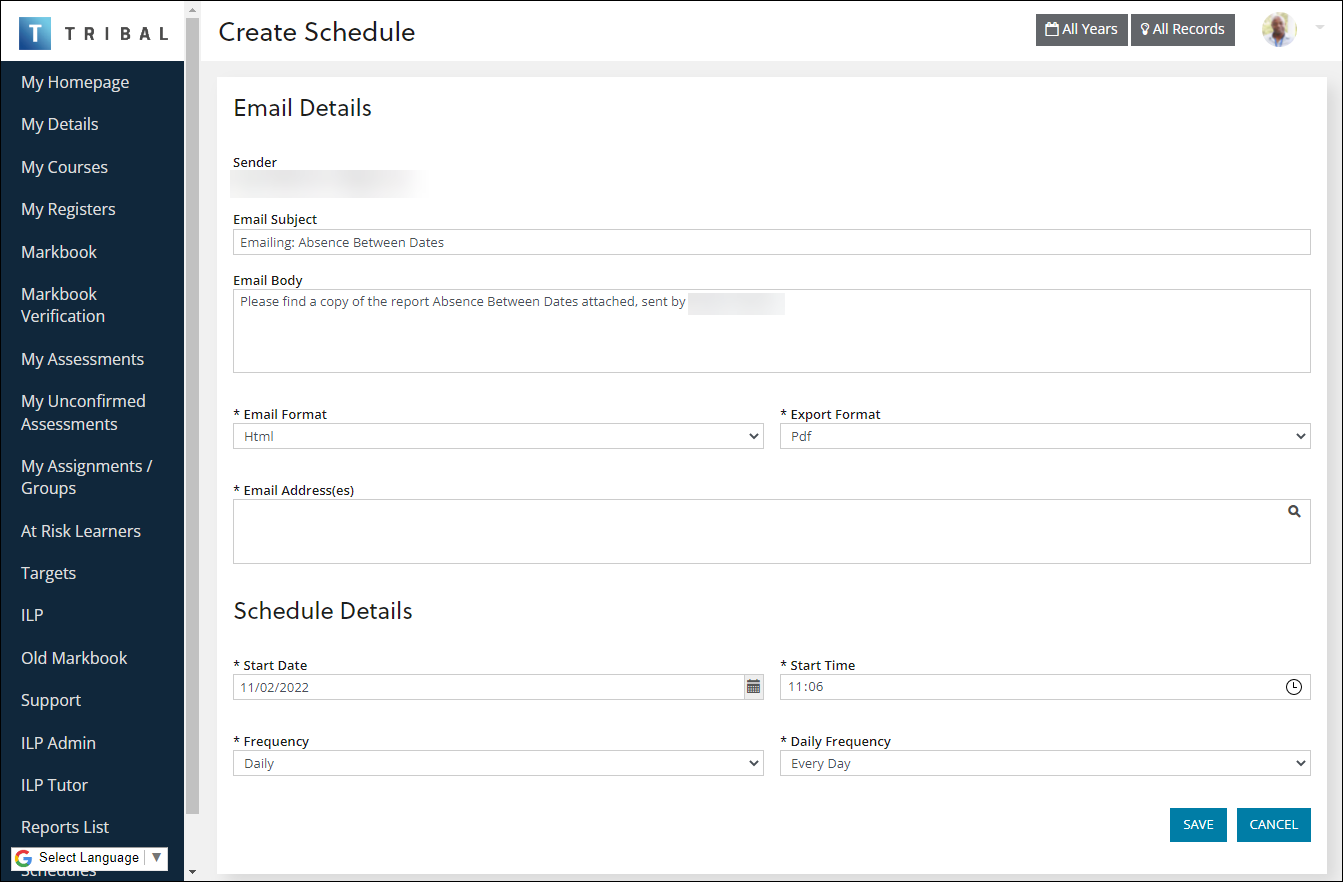
Users with the Create Schedules role can create a schedule to email reports (accessed from the Reports option in the header menu) to learners and members of staff.
You can use the Create Schedule screen to enter the relevant schedule information.
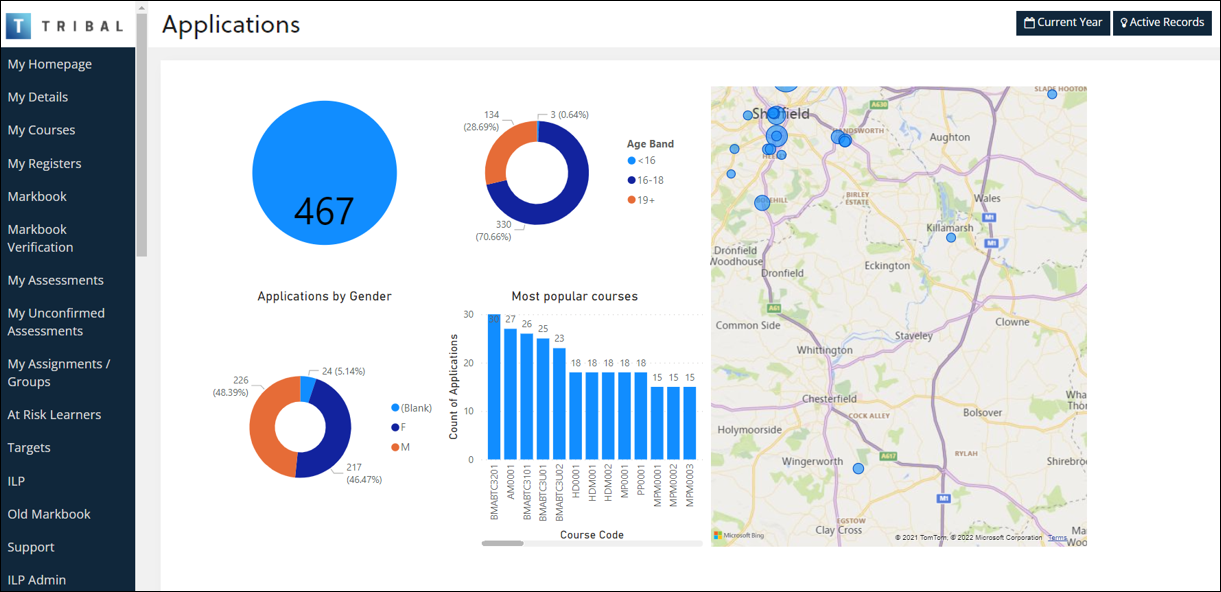
Ability to view PowerBI dashboards and charts in EBS Ontrack
Users with a valid PowerBIConnector licence can view PowerBI dashboards and charts in EBS Ontrack.
Ontrack Learner Hub
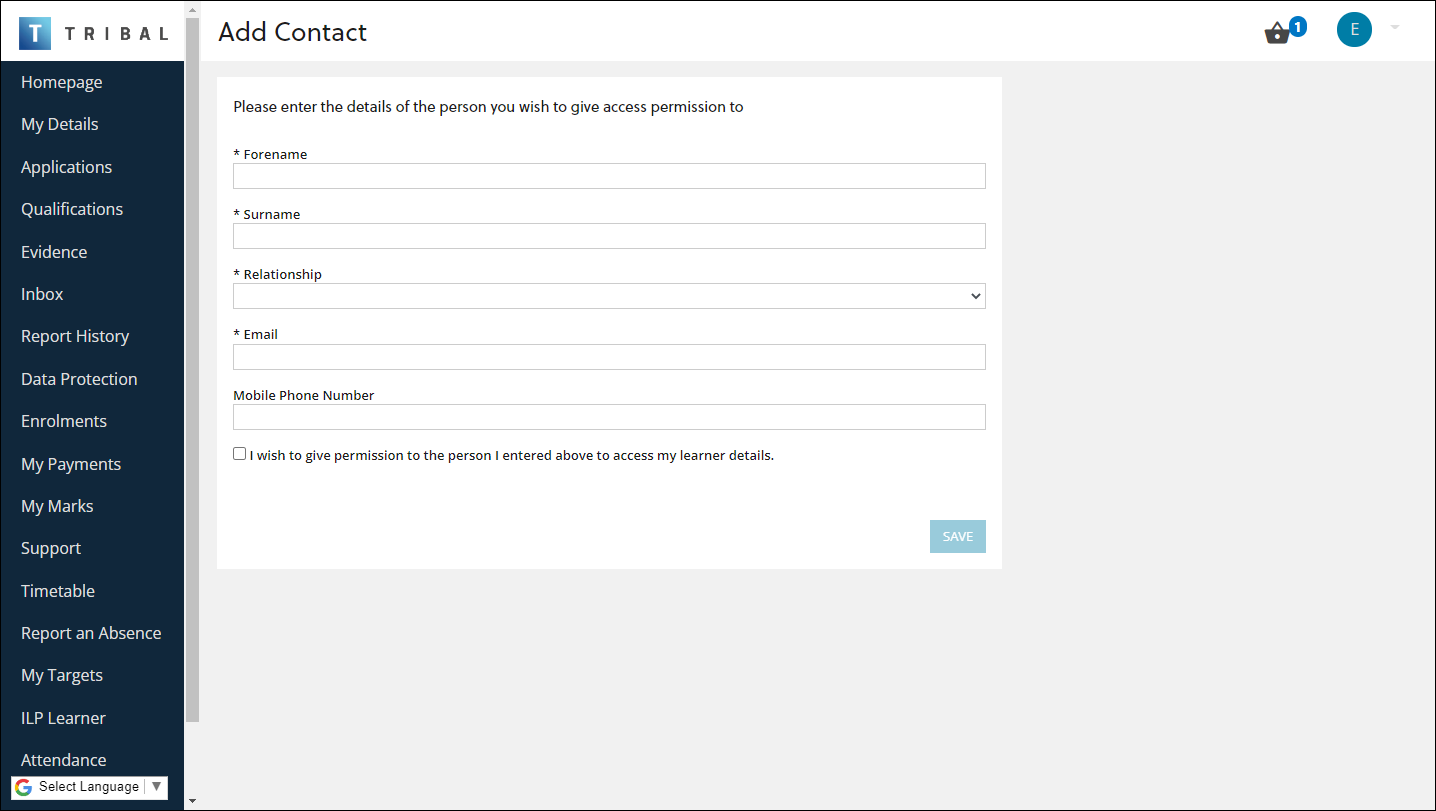
Add Contact screen added
The Add Contact screen has been added where learners can add a contact and specify whether the contact can access their details.
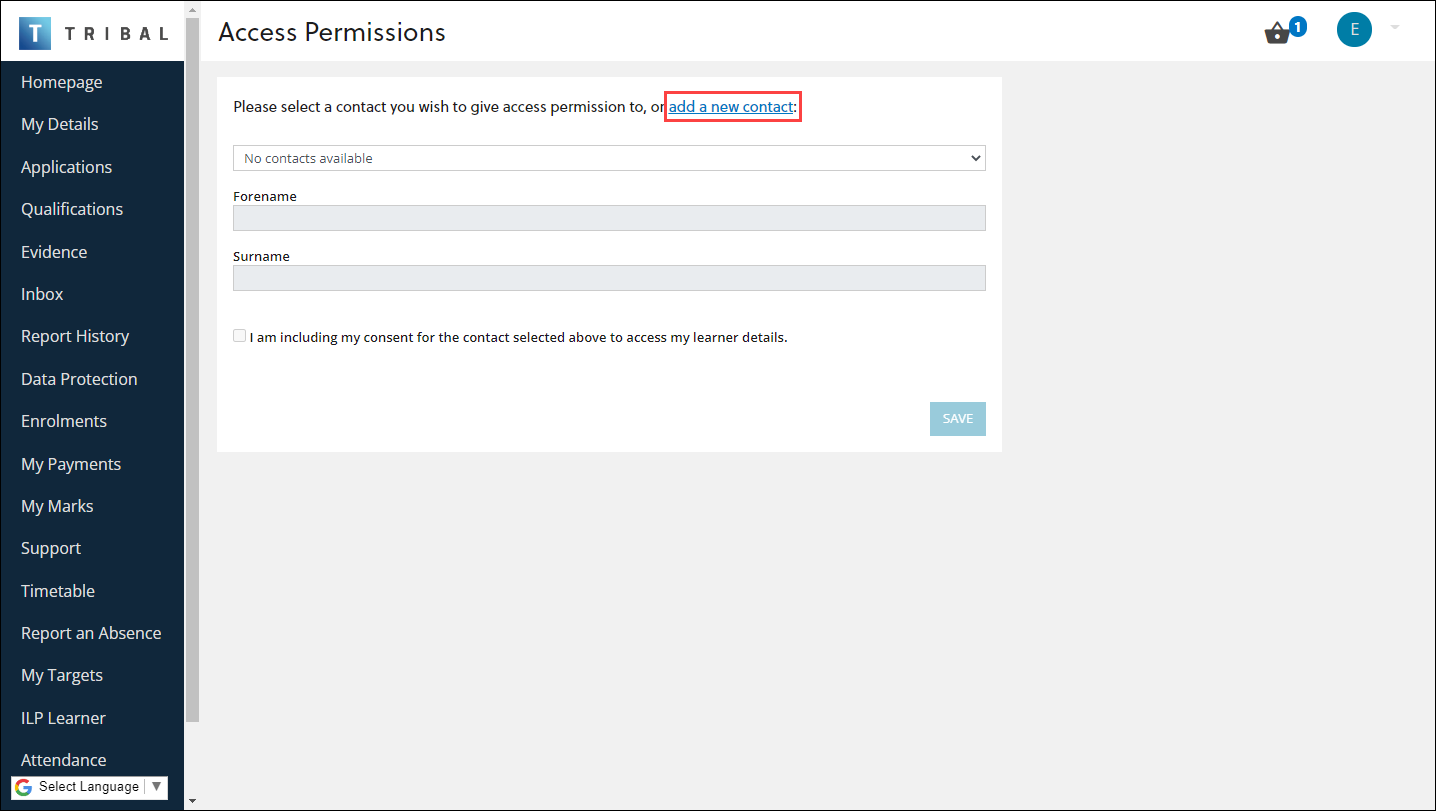
You can access the Add Contact screen by selecting the new add a new contact link, which replaces the Add a Different Contact button on the Access Permissions page.
My Documents screen added
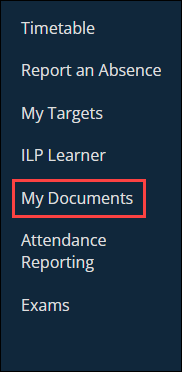
The My Documents screen has been added, which allows learners to view documents uploaded for a review or target.
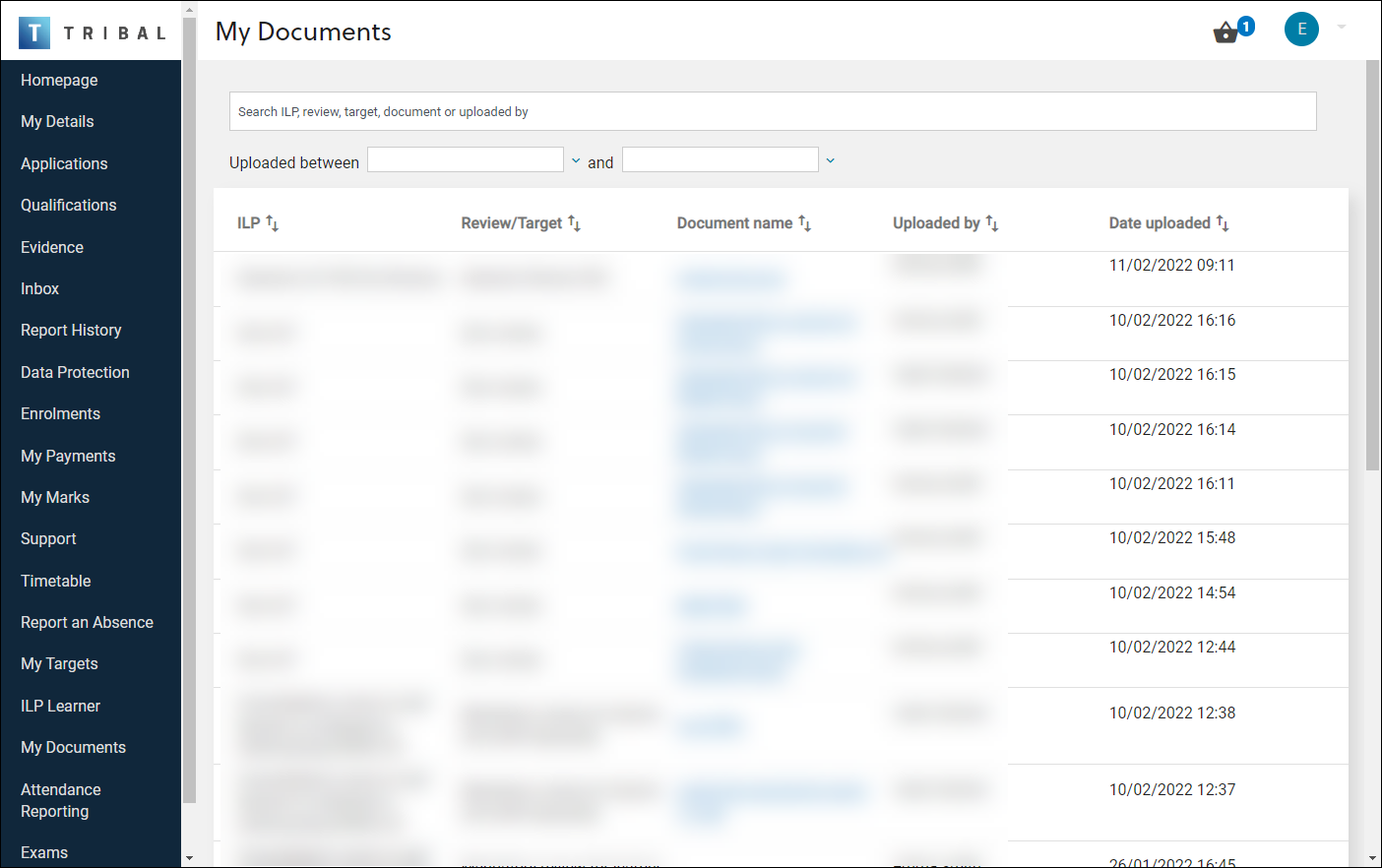
It can be accessed by selecting the My Documents option in the left-hand panel.
Exams screen added
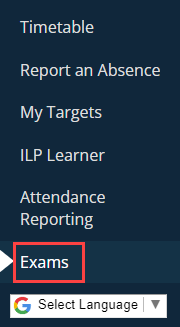
The Exams screen has been added, which allows learners to view their exams and grades.
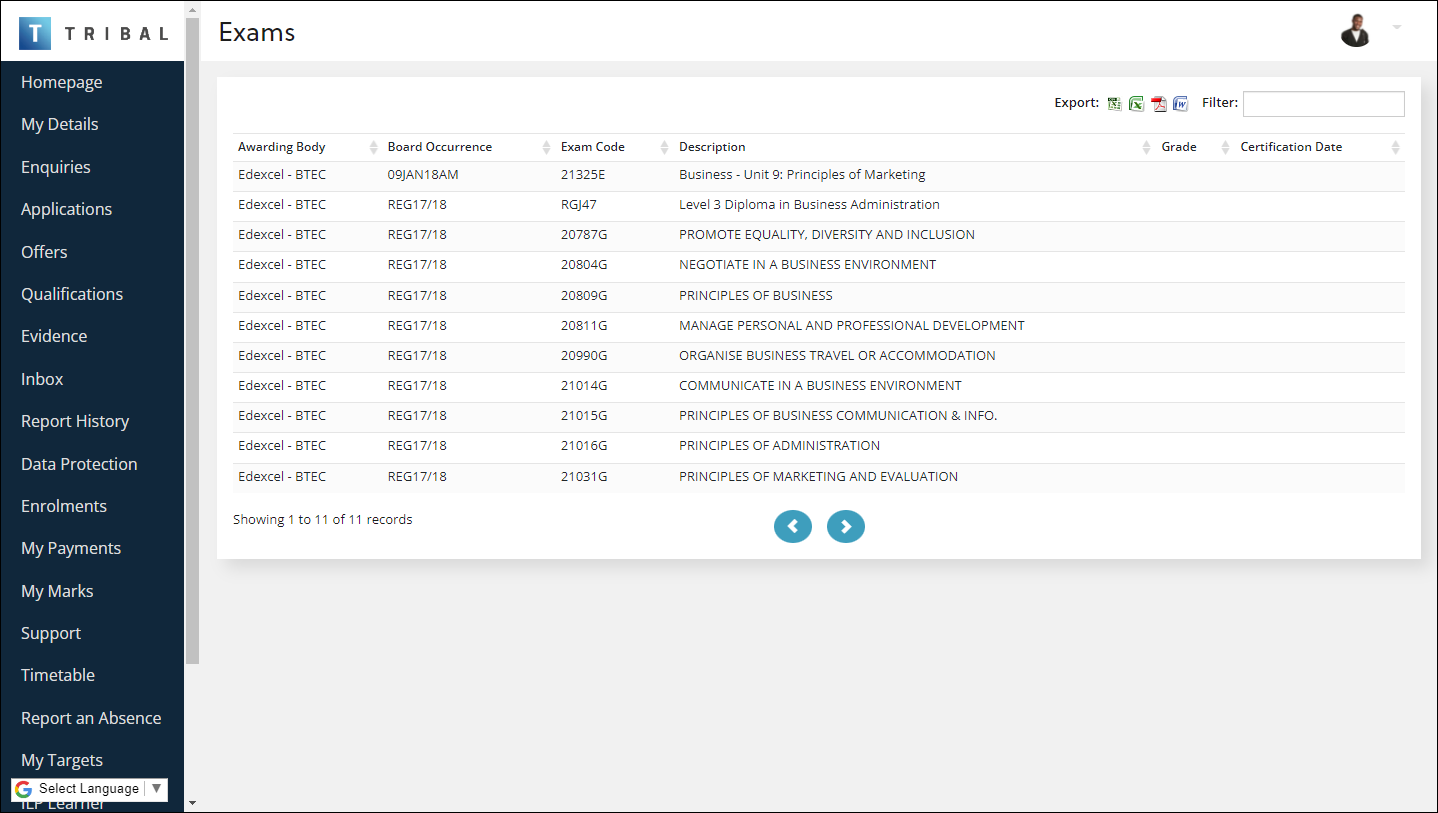
It can be accessed by selecting the Exams option in the left-hand panel.
Ability to rearrange or cancel an interview
When applicants have interviews booked, the following buttons are now displayed for each interview record:
-
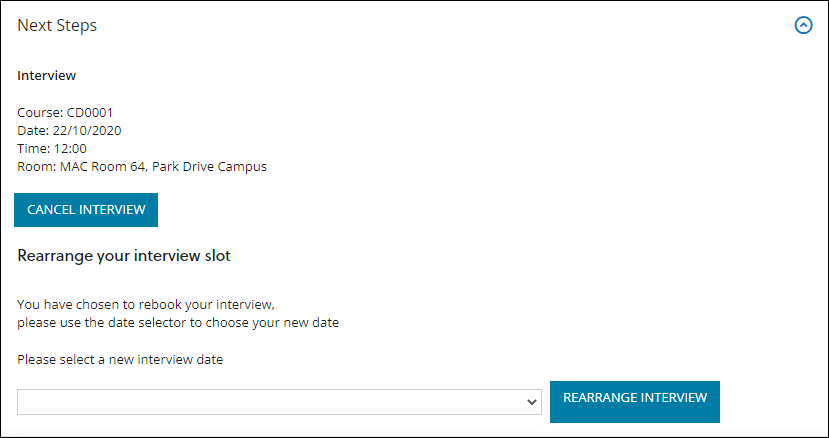
Rearrange Interview
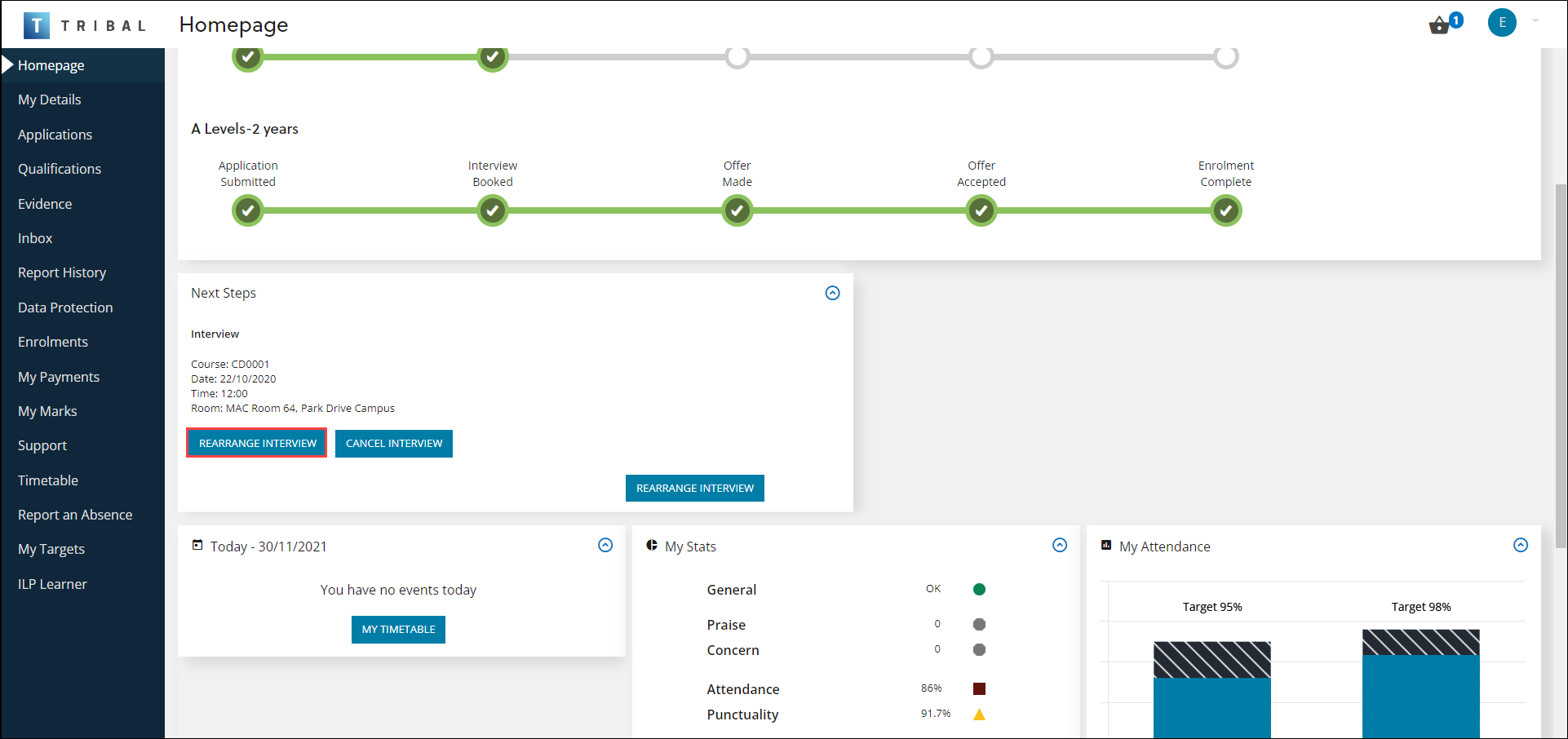
On selecting this button, a drop-down is displayed which allows the applicant to select an alternative interview date before confirming it.
-
Cancel Interview
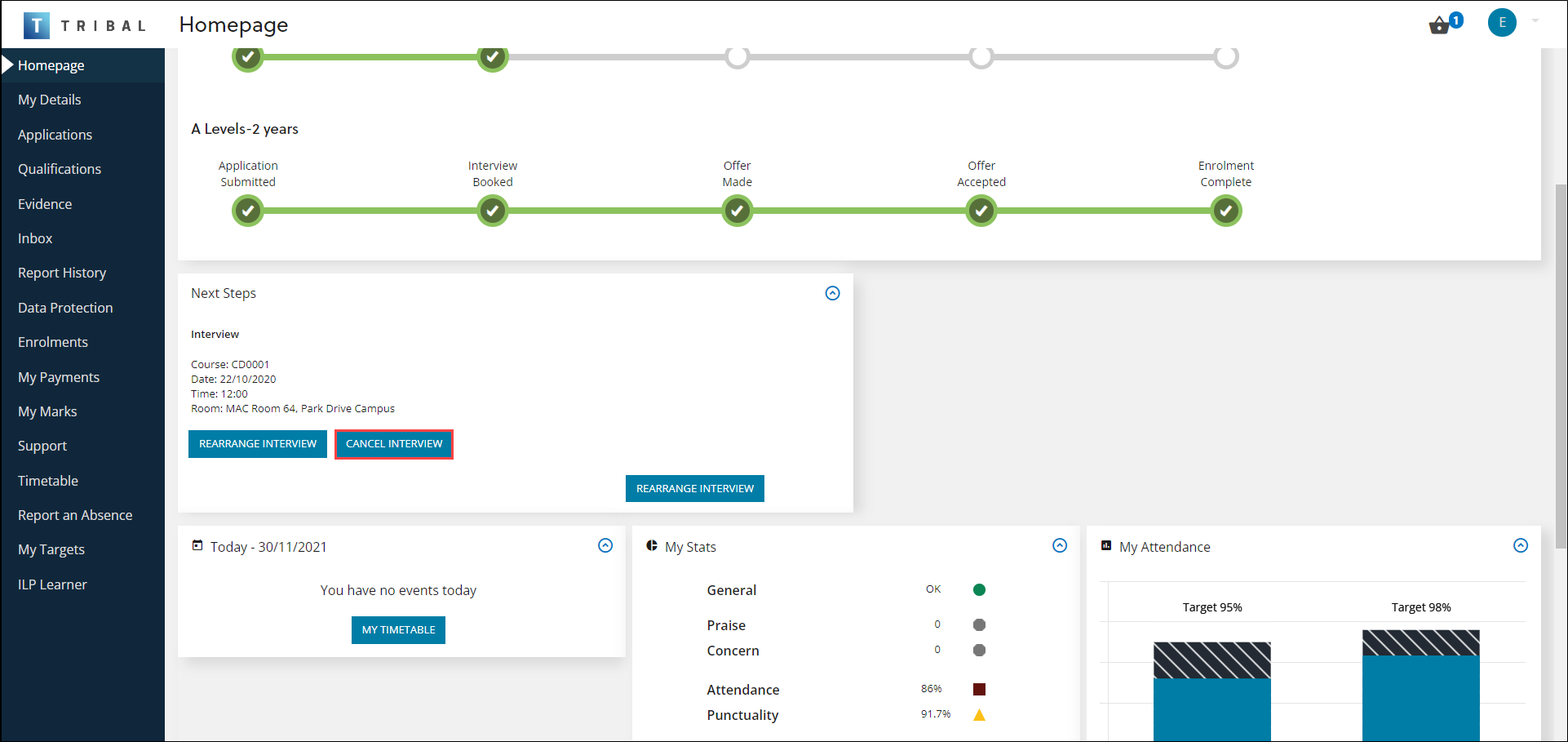
On selecting this button, a drop-down is displayed which allows the applicant to select a reason for the cancellation before confirming it.
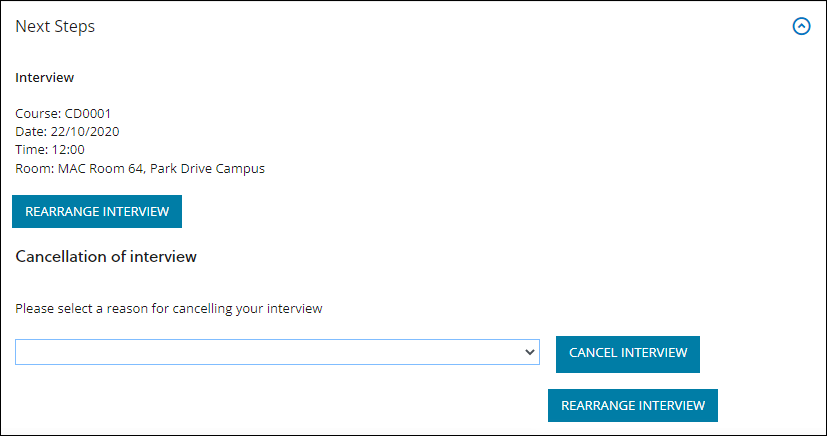 Reasons can be defined on the new Interview Cancel Reason reference data screen.
On confirmation, the Send Interview Cancellation Email workflow is run, which sends a confirmation email to the applicant.
The email text can be amended in the INTERVIEW_CANCELLED record in E-Mail Templates reference data.