Ontrack Staff Hub
The new and updated features for the 4.50 release are as follows:
- Absence reporting
- Correspondence manager
- Fees
- Fund manager
- Group management
- WAL IDP
- Interview management
- Room bookings
| Header | Business impact | Affected topics |
|---|---|---|
|
Absence reporting authorisation and approval |
A new status indicator on the new Planned absence page provides clear visibility of each request’s progress, from submission through to approval or rejection. Absence requests submitted by learners or created by staff can also be set to approve automatically. For example, you might want certain reasons, such as bereavement, to be approved without manual intervention. The default setting for automatic approval is No, so you must configure the relevant absence reasons in reference data. You can also configure each absence type with specific requirements, such as whether approval is needed, whether supporting evidence must be uploaded, or whether additional notes are required. These settings give you greater control and help ensure consistency across the reporting process. Important.Additional roles are required for absence reporting. For more information, go to EBS Central user management.
|
| Header | Business impact | Affected topics |
|---|---|---|
|
Bulk correspondence |
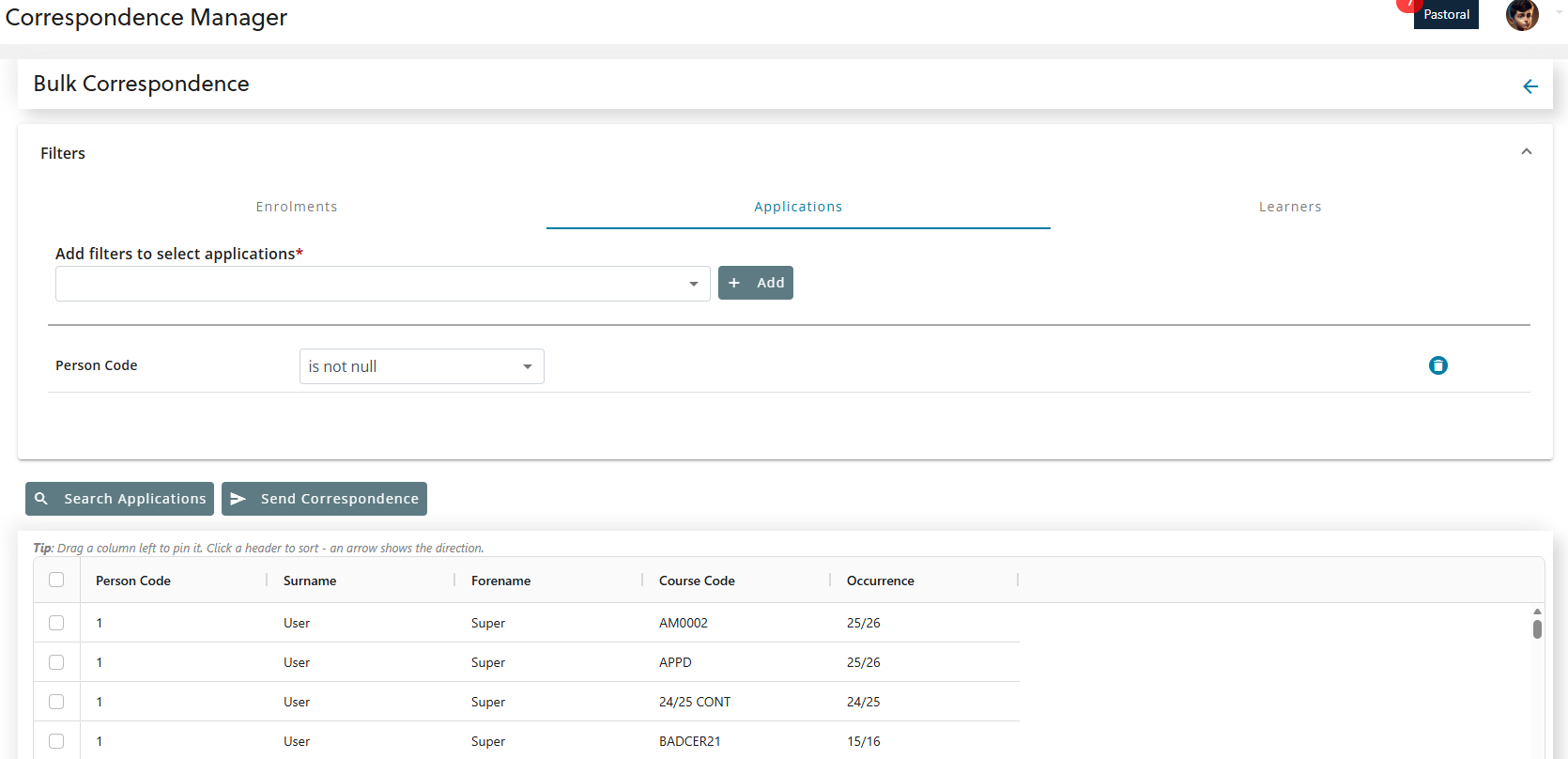
Staff can now send correspondence to multiple learners using the bulk correspondence feature for correspondence manager in Ontrack Staff Hub. On selecting Bulk correspondence, you can switch between the Enrolments, Applications, and Learner tabs. Each tab includes a drop-down list that allows the user to select filters relevant to that data type. When you choose a learner type, the system automatically uses the correct view and shows only the relevant filter columns in the drop-down. This ensures that you can generate correspondence for an accurate, customised learner list. Important.Additional roles are required for bulk correspondence. For more information, go to EBS Central user management.
|
|
|
Generate and send correspondence to multiple applicants |
Staff can now generate and send correspondence to multiple applicants from the following pages:
Important.Additional roles are required for sending correspondence to multiple applicants. For more information, go to EBS Central user management.
|
|
|
Correspondence manager updates |
The following changes have been made to improve staff use of correspondence manager:
|
| Header | Business impact | Affected topics |
|---|---|---|
|
View and manage E-Payments in Ontrack Hub |
Staff can now view and manage E-Payments in Ontrack Hub as follows:
|
|
|
Enhancements to the fees page in Ontrack Hub |
Minor enhancements have been implemented in the Fees page to provide staff with a more organised view of fee‑related information as follows:
|
|
|
View complete receipt information |
The Receipts section on the Learner Fees Page in Ontrack Hub has been improved so staff can now view complete receipt details, similar to what is available in the EBS Central. These enhancements help staff verify receipt numbers and matched fees with greater accuracy.
|
| Header | Business impact | Affected topics |
|---|---|---|
|
Group management |
The new group management module enables staff to manage curriculum and course groups in EBS Ontrack Staff Hub as follows:
Important.Additional roles are required for group management. For more information, go to EBS Central user management.
|
| Header | Business impact | Affected topics |
|---|---|---|
|
Interview management |
This release introduces a comprehensive Interview Management experience within Ontrack. It provides a centralised landing page, enhanced controls, and powerful scheduling tools that allow staff to efficiently create, manage, and monitor interview slots. This release includes:
Important.Additional roles and institution settings are required for interview management. For more information, go to EBS Central.
|
|
|
Interview management dashboard |
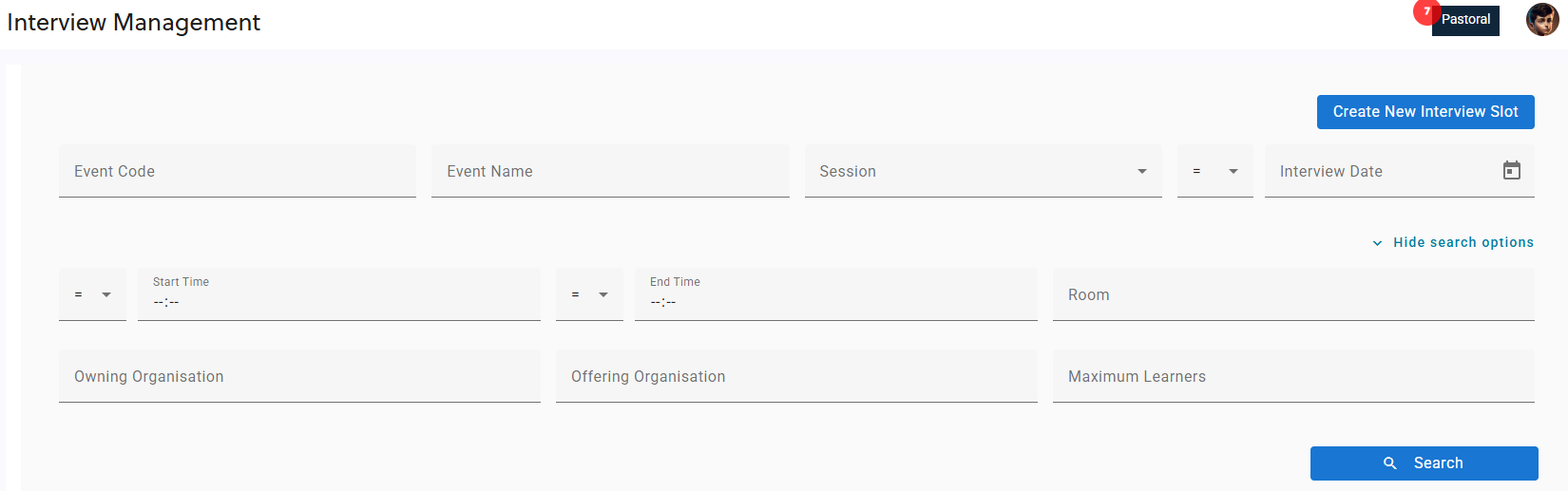
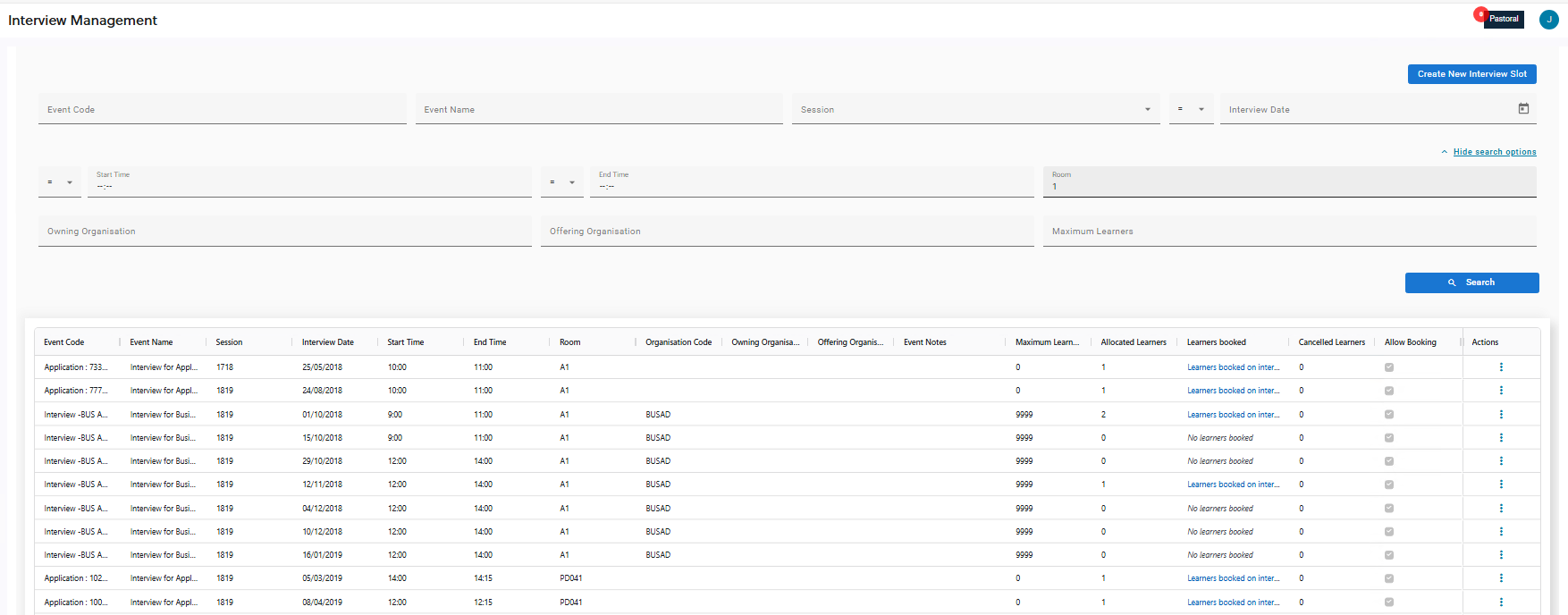
A new landing page provides a single location where authorised staff can view all available interview slots and their details. Staff can search interview slots using structured filters such as event details, session, and date, with expanded filters for more precise searches. Displayed Information Includes:
|
|
|
Create interview slots |
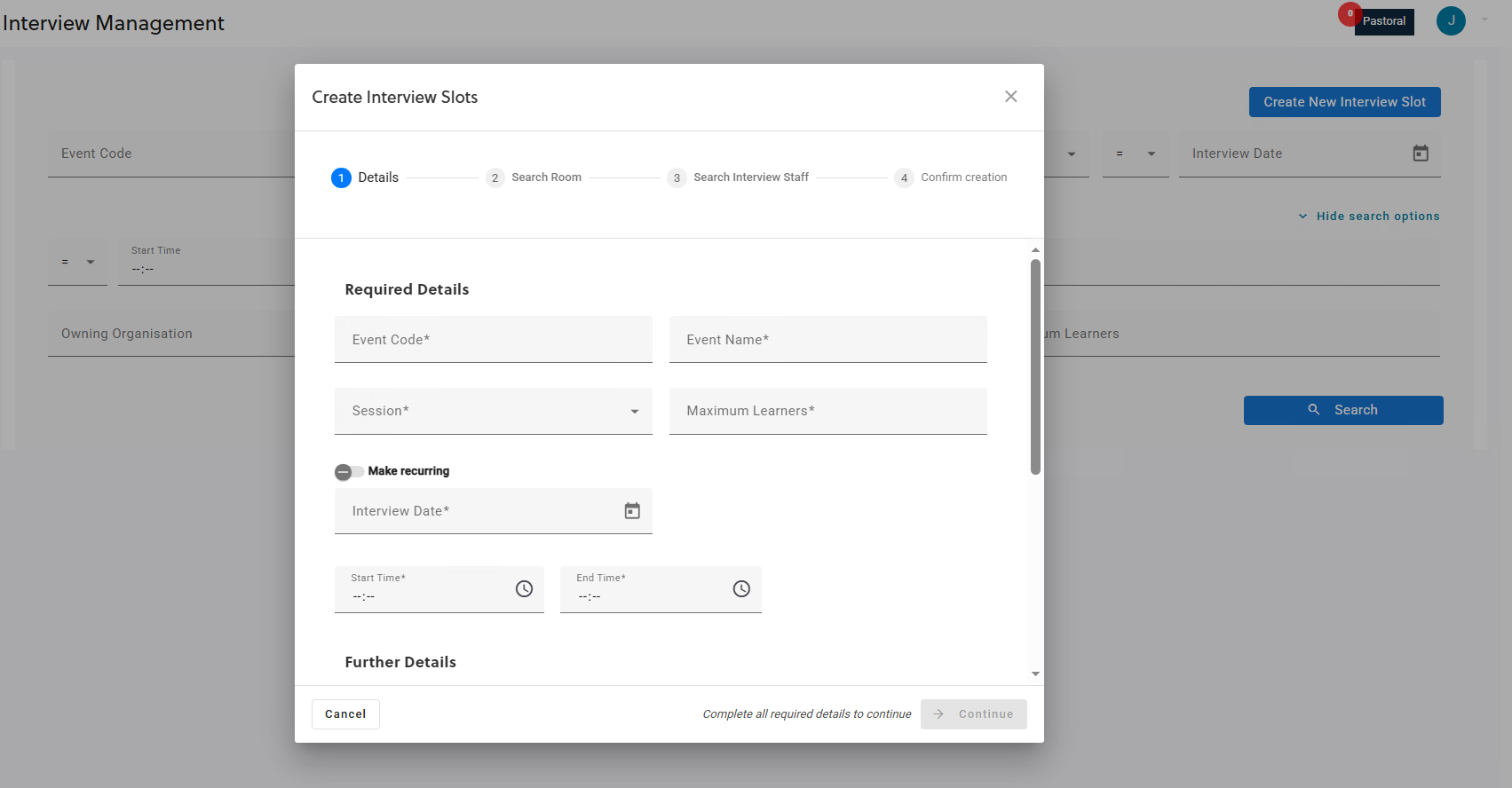
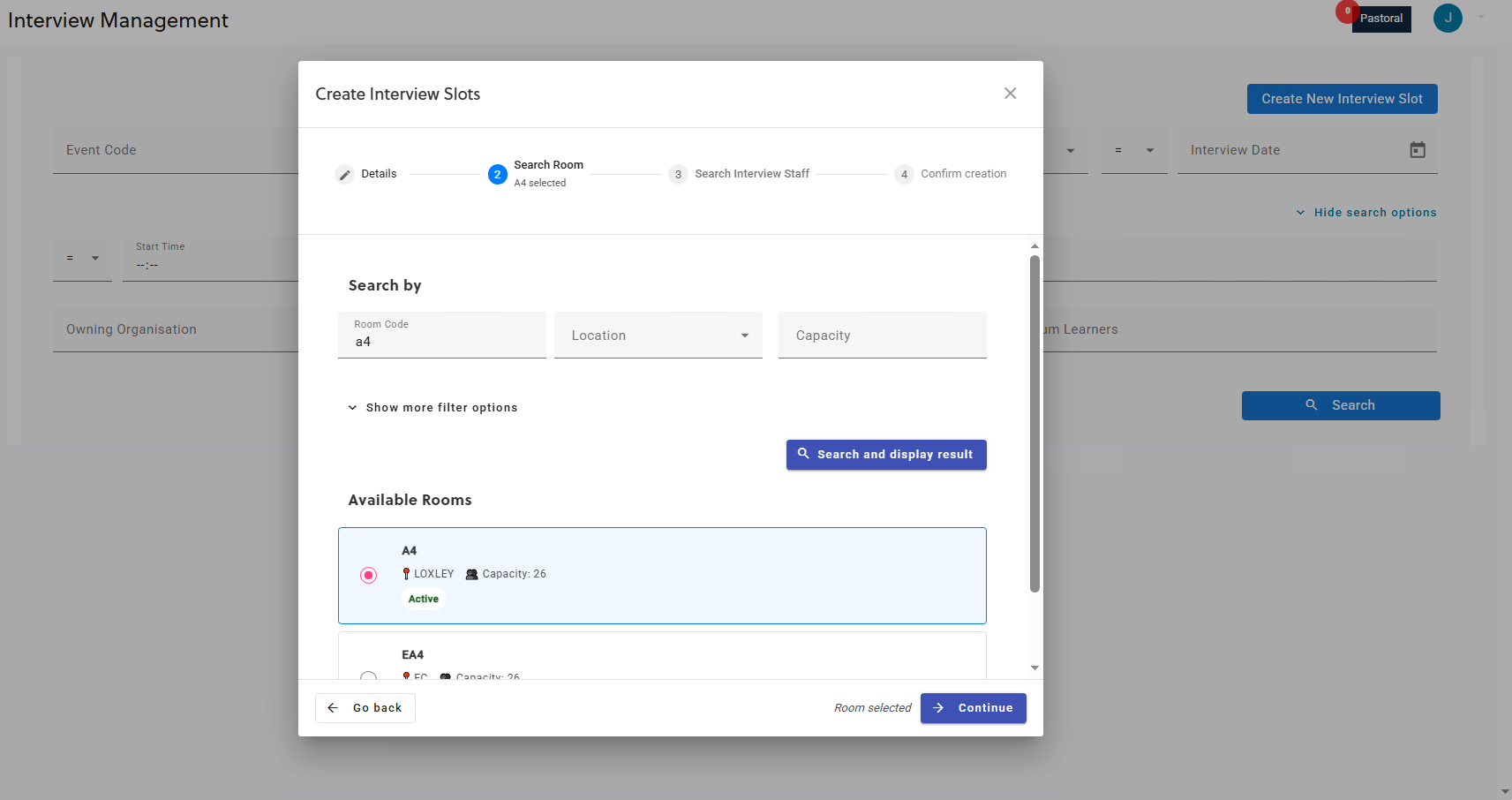
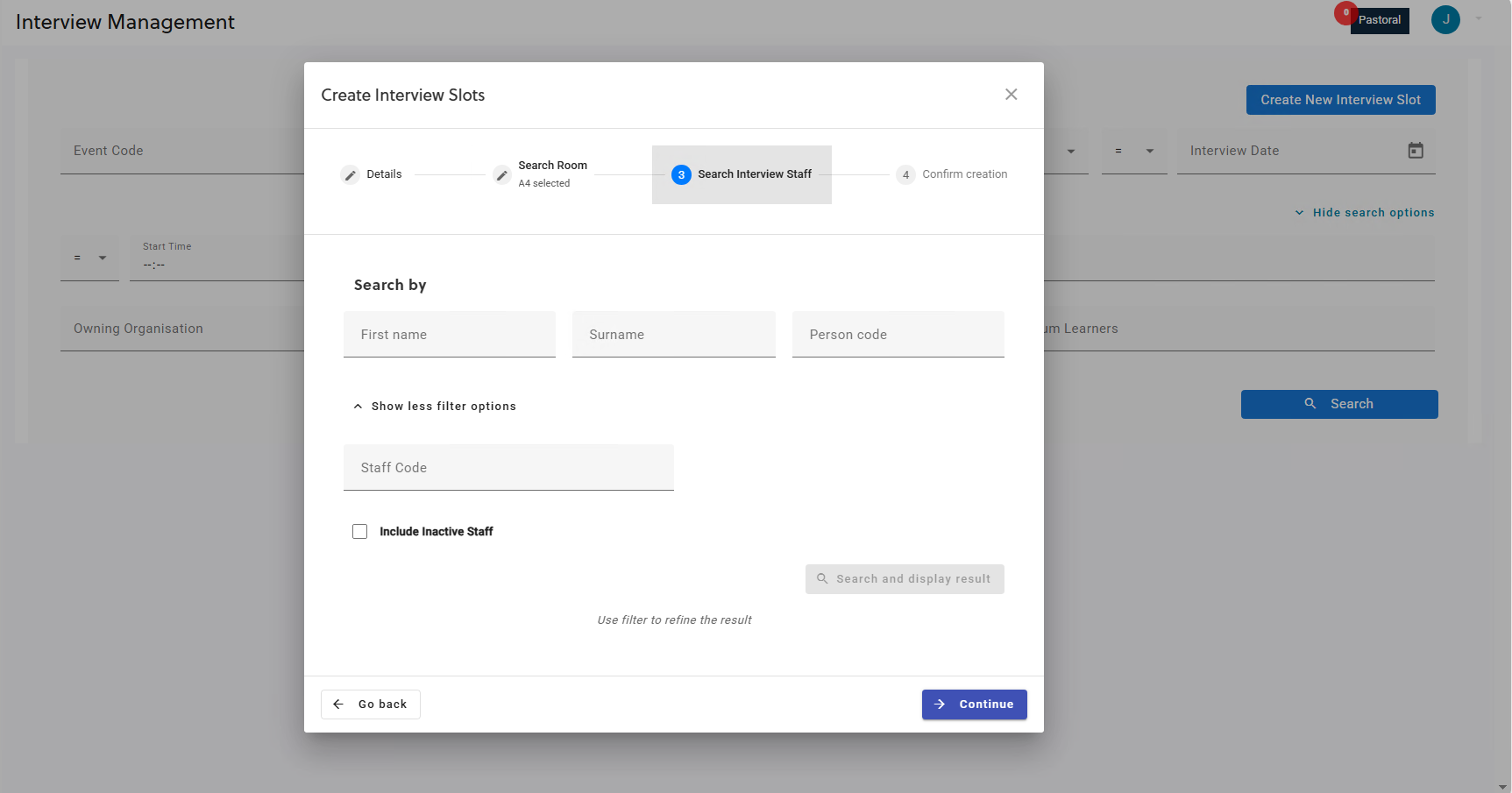
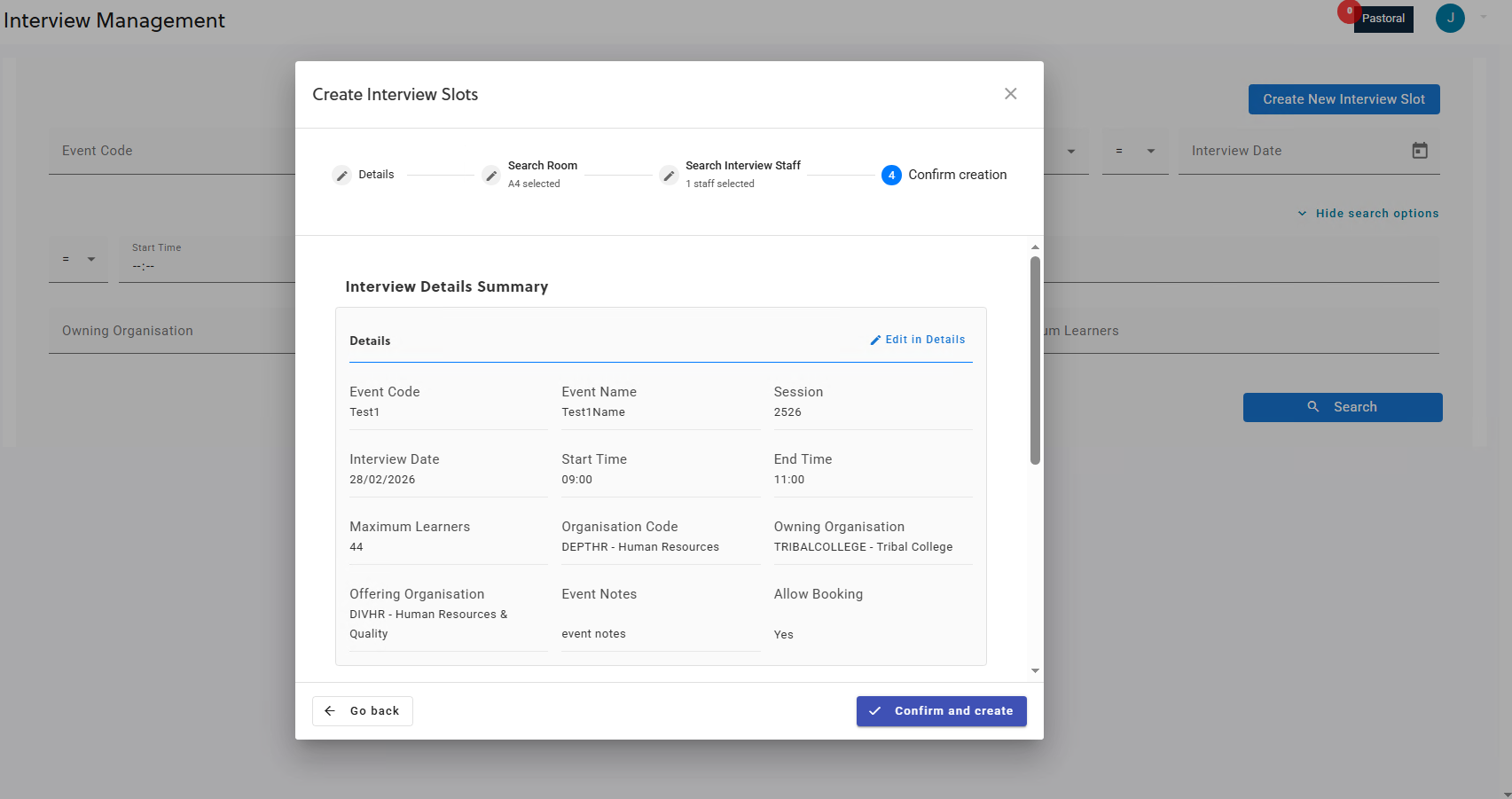
Staff can now create new interview slots using a guided four-step creation wizard: Steps:
Note that this is only available to staff with Create and Edit Interview Slots role. The steps in the process are as follows:
|
|
|
Create recurring or bulk interview slots |
Staff can generate multiple slots at once using recurrence options. A summary of the recurrence pattern is displayed during confirmation so staff can review the schedule before creation. When confirmed, the system automatically generates all slots matching the defined pattern. |
|
|
Edit interview slots |
After an interview slot has been created, staff can take the following actions from the interview management grid:
Note that staff can also remove learners from an interview from Concierge. |
| Header | Business impact | Affected topics |
|---|---|---|
|
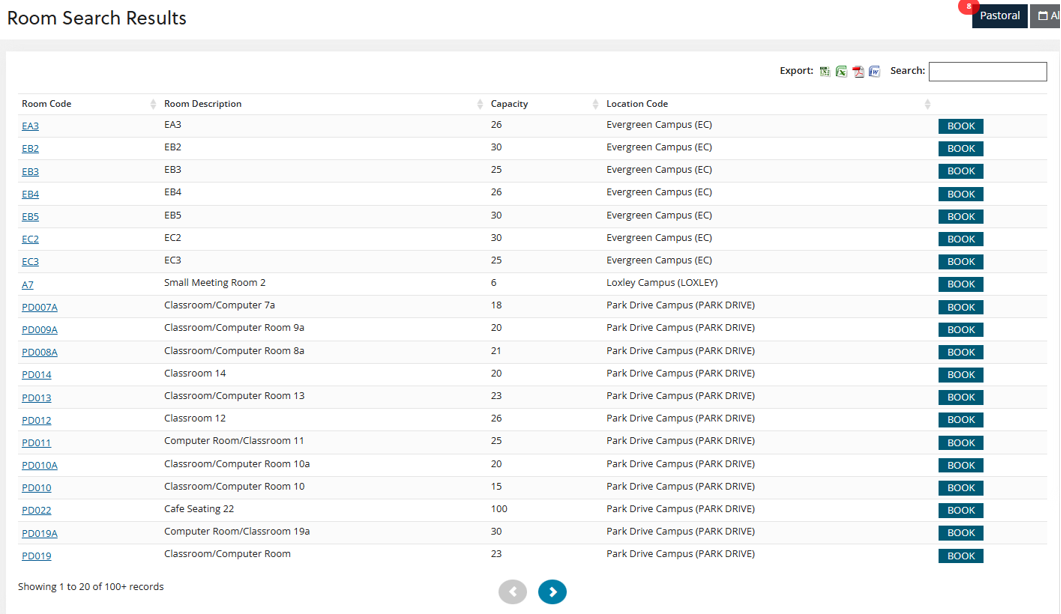
Room bookings |
This release introduces a new room booking module in Ontrack Hub, allowing staff to create room bookings and add participants to either newly created or existing bookings.
The room booking module enables staff to do the following:
Important.Additional roles and institution settings are required for room bookings. For more information, go to EBS Central.
|