27 October 2026

Ontrack Staff Hub

The new and updated features for the 4.52 release are as follows:

Interview management
Header Business impact Affected topics

Add custom fields to interviews

You must have the Interviews Customisation Admin role to configure custom fields in Interview management.

You can add up to six custom fields to collect information specific to your institution.

On the Customisation tab, you can configure each field’s:

  • Label

  • Data type

  • Reference-data values

  • Visibility to learners

  • Maximum length

  • Display order

  • Supporting notes.

After you save the configuration, the fields appear:

  • As the final columns in the Interviews grid

  • In the Custom fields section at the bottom of the interview side panel.

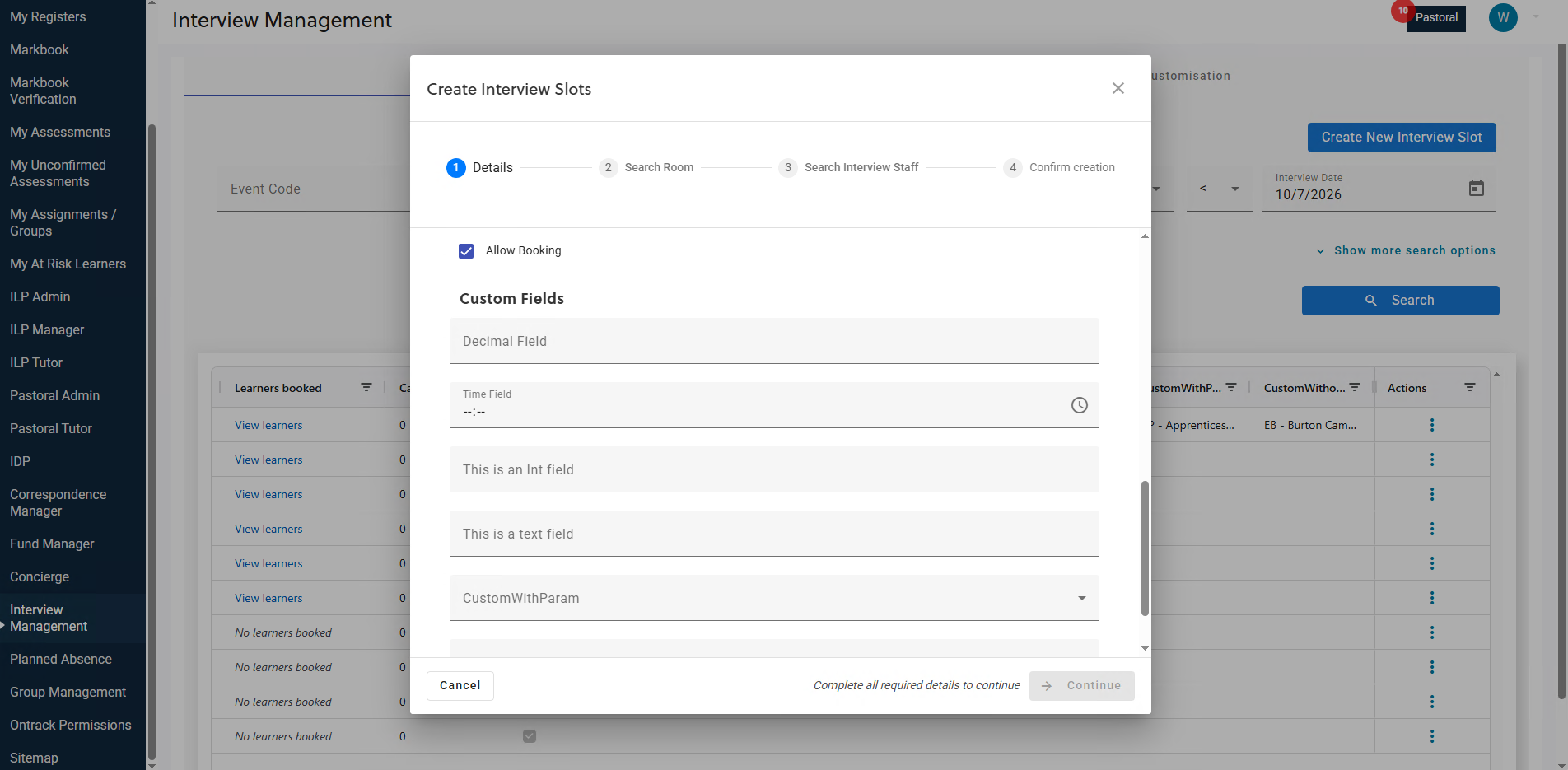
  • In the Custom fields section of the Create and Duplicate interview dialog.

The image below shows the Custom Fields section of the Create and Duplicate Interview dialog.

What is interview management?

How to add custom fields to interviews

EBS Ontrack interview management

Markbook verification
Header Business impact Affected topics

View the learner and unit for each audit-history comment

Requirements

  • An active EBS4Markbook licence.

  • An active Markbook user role.

No additional role or setting is required.

Location

Ontrack > Markbook Verification > Verify subject tab > Audit History

What's new

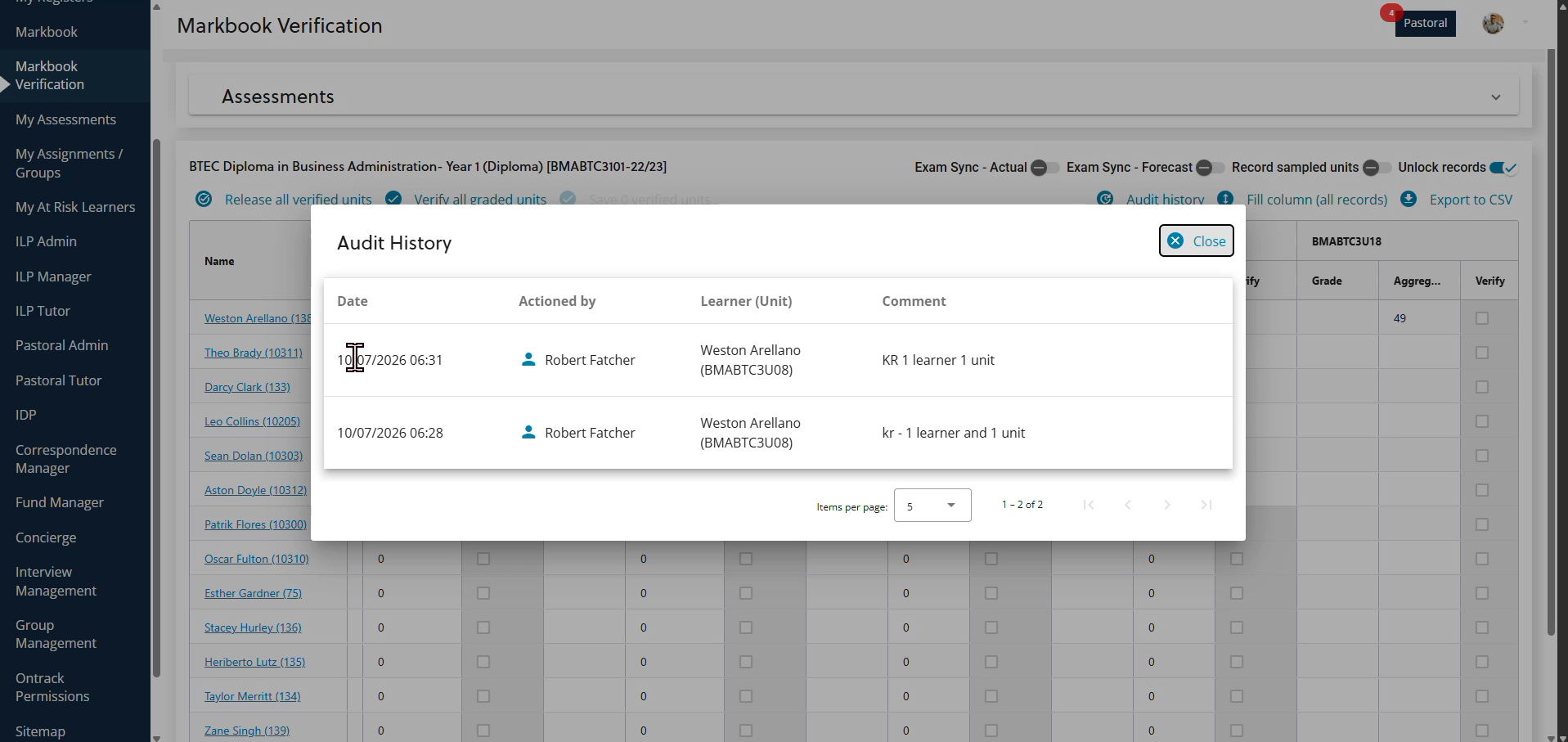
The Audit history dialog now contains a Learner (Unit) column. This column identifies the learner and unit associated with each comment, helping you match comments to individual grades during reverification.

The dialog displays:

  • Date

  • Actioned by

  • Learner (Unit)

  • Comment

If a save affects several learners, EBS groups the changes into one row with one comment.

If an action is not associated with a learner or unit, the Learner (Unit) cell is blank.

Long text wraps at narrow screen widths and higher zoom levels. The existing pagination options and Close button are unchanged.

The image below shows the new Learner (Unit) column in the audit history.

Not applicable

Safeguarding
Header Business impact Affected topics

Control whether learners can create records about other learners

Requirements

  • You need an active Safeguarding licence.

  • To manage this setting, you must have the Safeguarding Tutor role in the EBS: Ontrack Safeguarding group.

Location

Configure the setting in:

Ontrack Staff Hub > SFG Admin > Record Templates

Learners see the resulting options in:

Ontrack Learner Hub > My Support > Add Record / Add Note

What's new

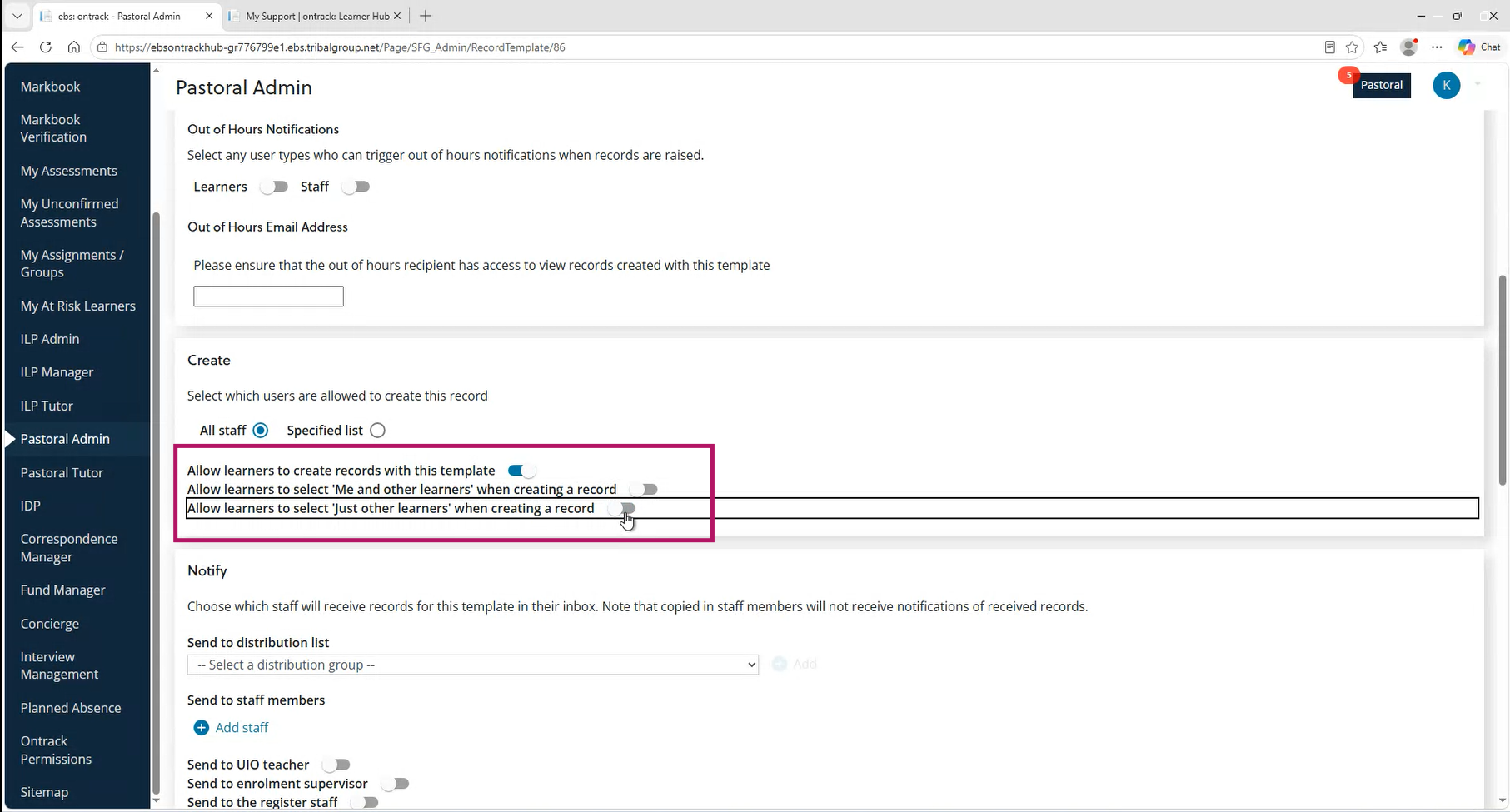
Each record or note template has two new settings:

  • Allow learners to select Me and other learners

  • Allow learners to select Just other learners

Both settings are enabled by default for new and existing templates, so the existing behaviour does not change after the upgrade.

The settings determine which options learners can select:

  • If both settings are enabled, learners can select Me, Me and other learners, or Just other learners.

  • If only Allow learners to select Me and other learners is enabled, learners can select Me or Me and other learners.

  • If only Allow learners to select Just other learners is enabled, learners can select Me or Just other learners.

  • If both settings are disabled, learners can select only Me.

The options are mutually exclusive, and the learner must answer the question.

Changes to a template apply immediately to new records and notes created from that template.

The image below shows the new options in Ontrack Staff Hub.
Notes

Records