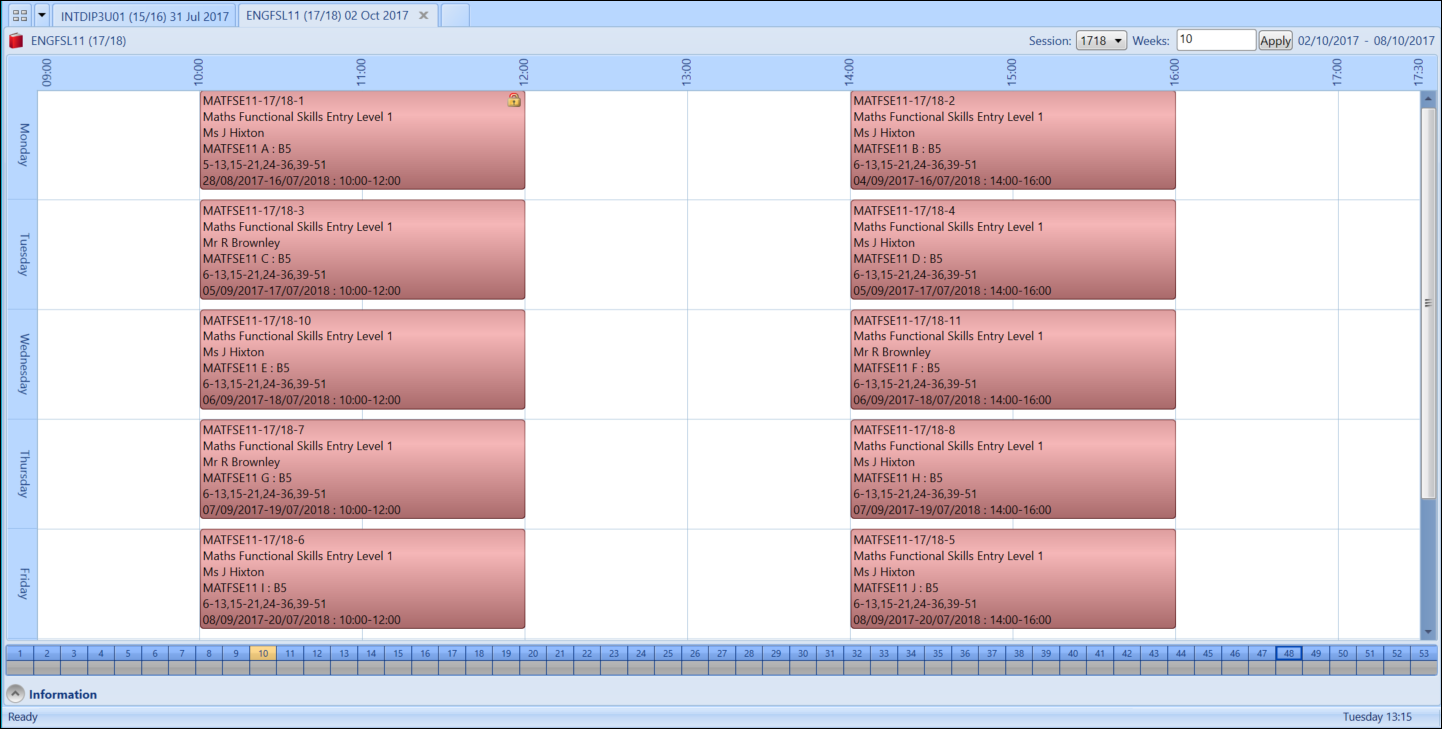
Timetables consist of a group of events and can be viewed as course, staff, room, learner or exam timetables. Viewing a learner timetable will display all of the events associated to the chosen learner, viewing a course timetable will display all the events associated to the chosen course, and so on.
In the Recent section of the start page you can access previously opened timetables by selecting on the required record.

Timetables can also be opened from the Timetable ribbon.

From the Timetables ribbon, you can:
 Open My Timetable
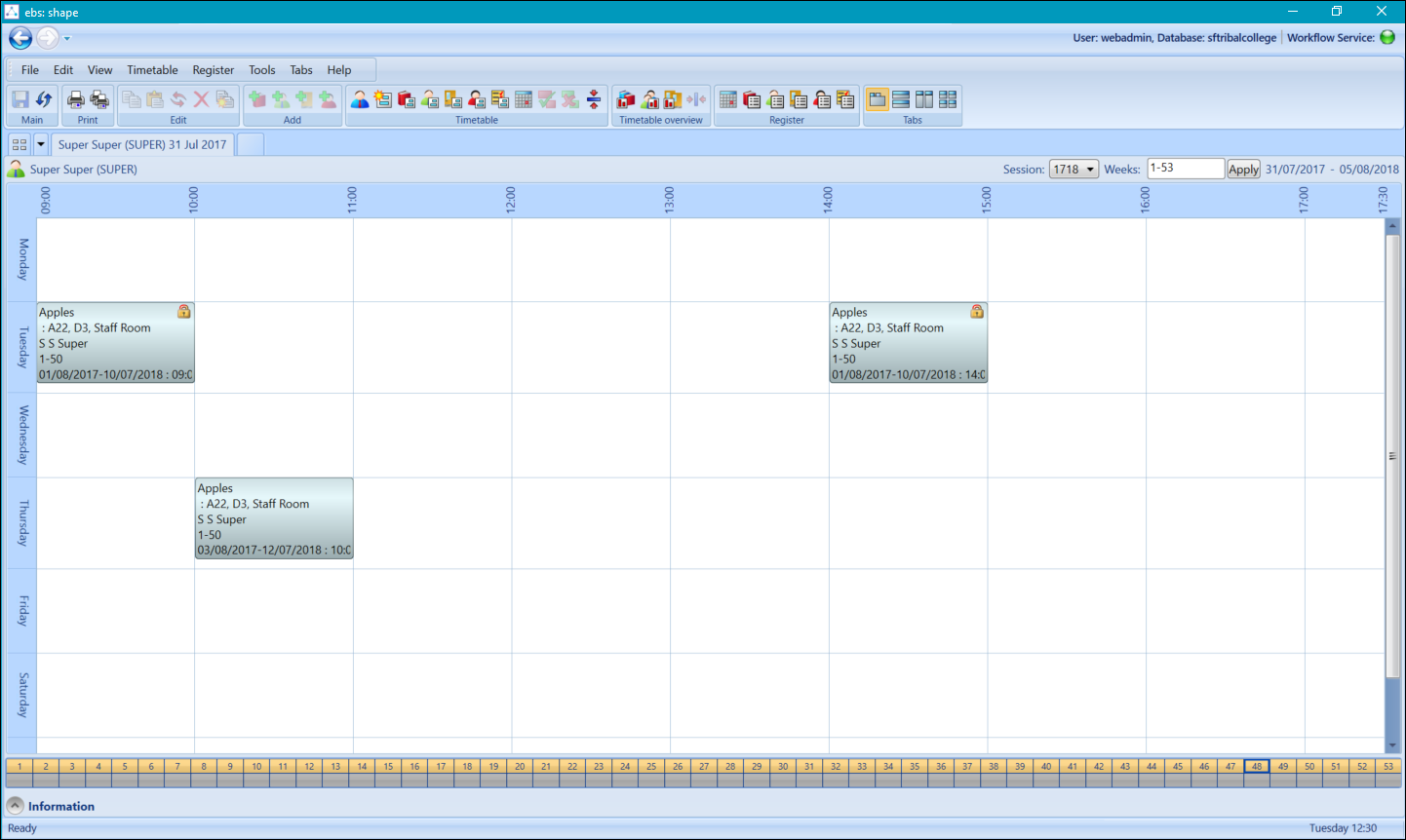
Opening My Timetable displays your personal timetable for the current session. Here you can view the timetable of events that you are associated with.
To open My Timetable, select the View my timetable button from the Timetable section of the main ribbon.

The timetable grid is then displayed showing all events which you are associated with.
Open a blank timetable
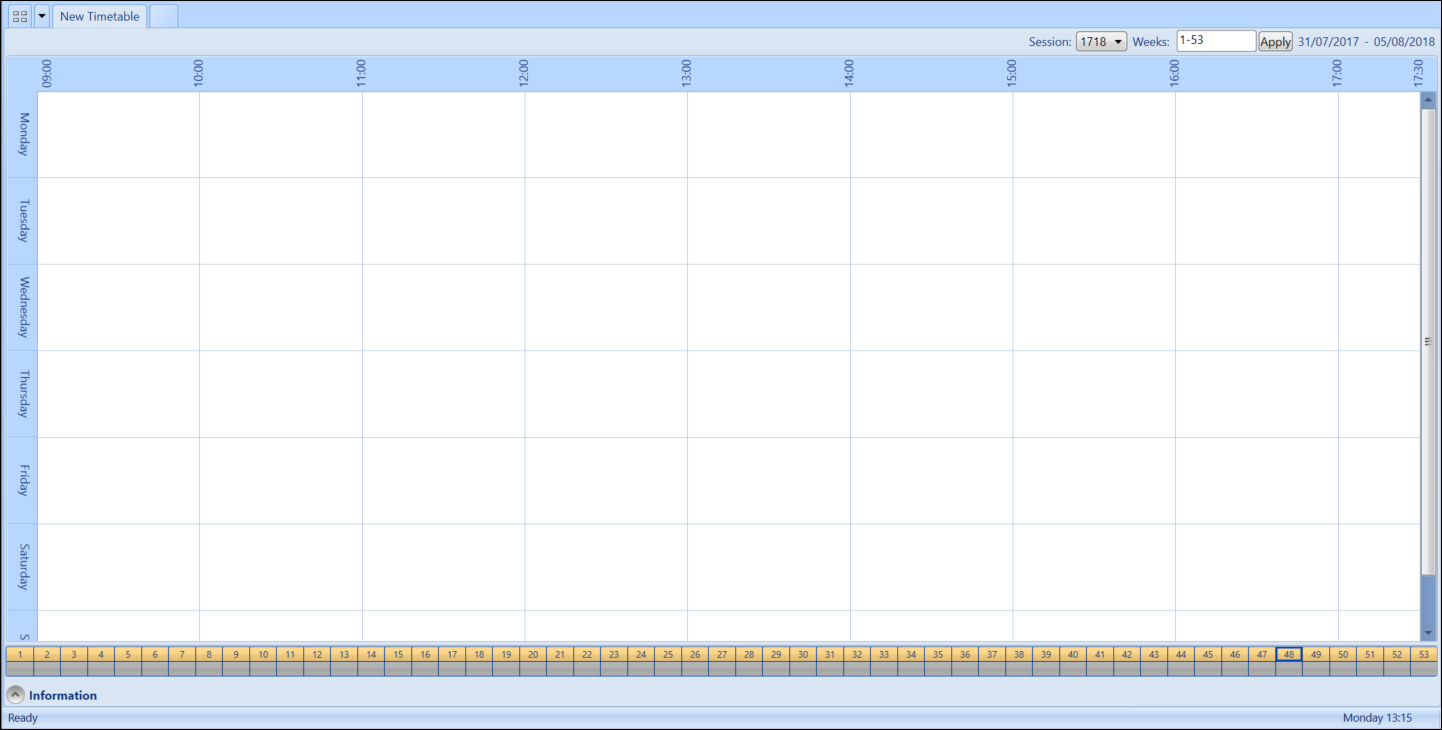
Opening a blank timetable displays the timetable grid for the current date and session.
To open a blank timetable select the Create a new blank timetable button from the Timetable section of the main ribbon.

The blank timetable grid is displayed. As no resource context (that is: Course, Room, Staff, Learner or Exam) has been chosen no events are displayed.
Open an existing timetable
You can view course. staff, room, learner and exam timetables dependent on the type of timetable search used.

The timetable searches available are:
- Course search
- Staff search
- Room search
- Learner search
- Exam search
If a course search is used then the timetable of the selected course will be displayed, if a staff search is used then the timetable of the selected staff member will be displayed, and so on.
For the following example, a course timetable is opened.
To view a course timetable:
-
Select the Open a new timetable with Course search button from the Timetable section of the main ribbon.

The Course Search window is displayed.
-
Use the Course Search window to search for the required course.
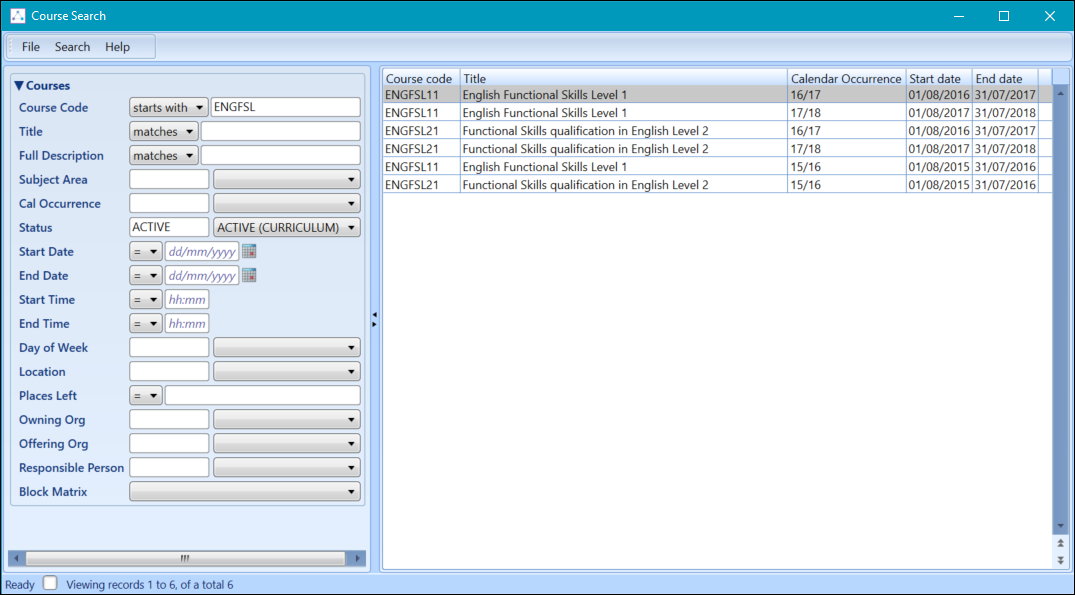
Select the course to display the course timetable.