You can configure EBS intel for use with Microsoft Entra ID.
To configure EBS intel:
-
Log in to EBS intel.
-
Select the Dashboard Configuration button from the dashboard ribbon.

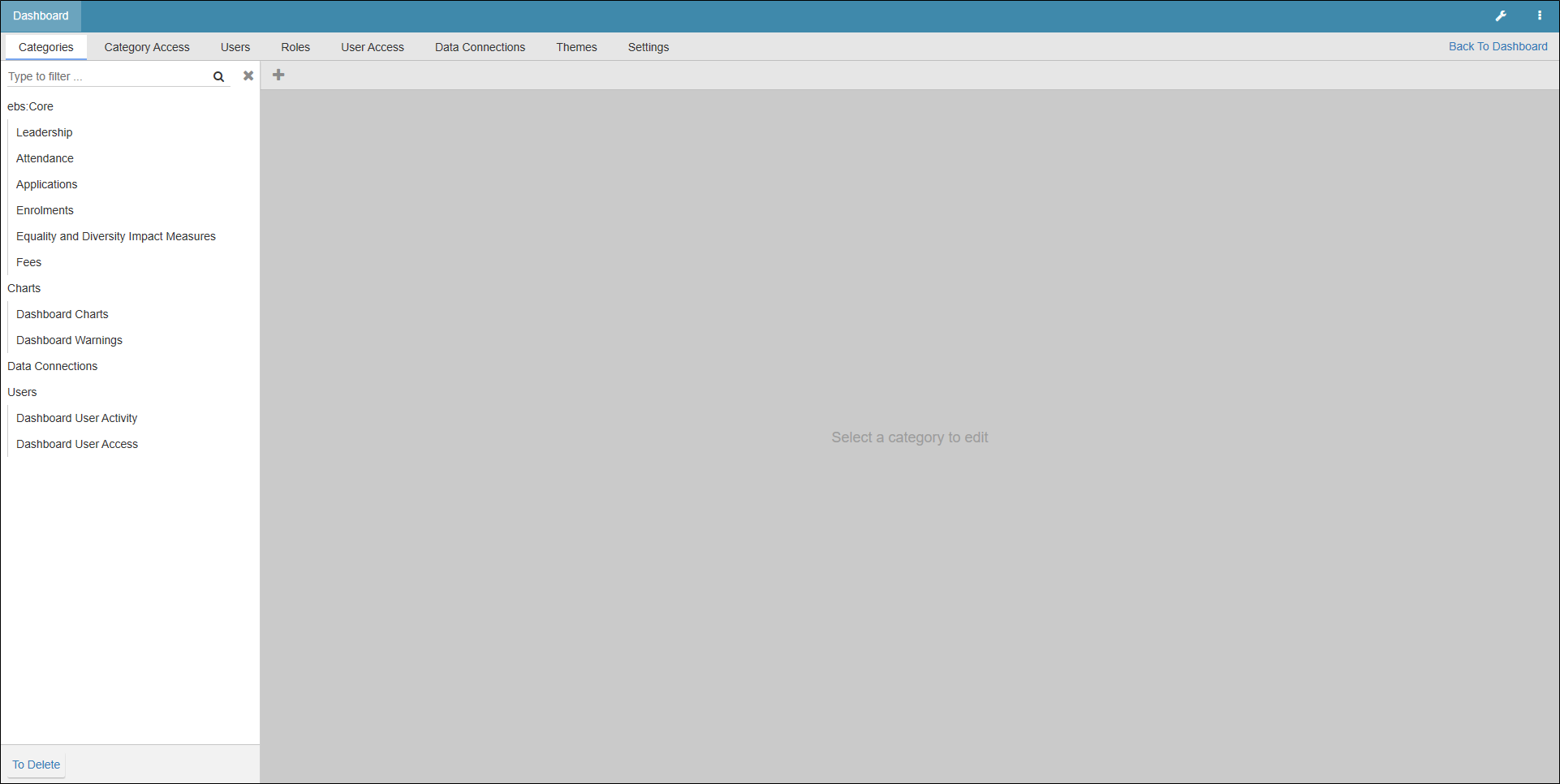
The Dashboard screen is displayed.
-
Select the Settings tab.

-
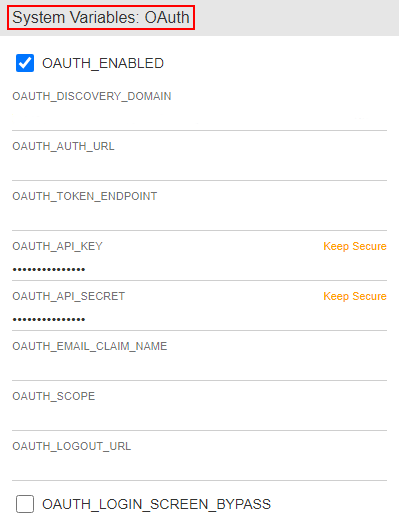
Scroll to the System Variable: OAuth section, accessed from the Central panel.
-
Enter the following relevant details:
-
OAUTH_ENABLED - set to TRUE
-
OAUTH_DISCOVERY_DOMAIN - For example, https://login.microsoftonline.com/<Directory (tenant) ID>/v2.0)
-
OAUTH_API_KEY - the Application (client) ID identified on the Overview screen during the Microsoft Entra ID configuration process
-
OAUTH_API_SECRET - the Client Secret generated in the Microsoft Entra ID configuration process
-
OAUTH_LOGIN_SCREEN_BYPASS - set to TRUE to enable automatic login for Microsoft Entra ID, set to FALSE to display the Azure login button and username/ password boxes for dual authentication
Important.You can use <Intel url>/pi/login to allow manual login when using automatic login.
-
-
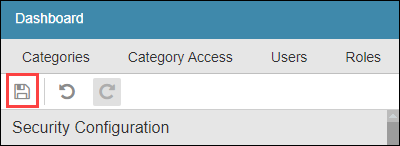
Select Save .