Markbook is used to record learner assessment marks in Ontrack Staff Hub. You can use it to find the assessments and learners you need, enter or update marks, and save those changes to learner records.
You can access markbook if you have the appropriate markbook permissions and are assigned to the relevant course or unit.
To use markbook, you need one of the following roles:
-
Markbook user
-
eMarkbook user
You also need the Mark assessments role for Ontrack Staff Hub.
Markbook performance and display
Markbook grids can contain a large amount of assessment and learner data. The grid works best when your browser zoom is set to 100%.
If you need to change your browser zoom level, change it before you load markbook. Changing the zoom level after markbook has loaded can affect performance. If you experience performance issues, reload the page.
Assessment and learner selection
Before you can enter marks, you use the available filters to find the assessment and learners you need. Some filters are required, and others help you narrow the results.
The available filters are:
-
Academic year: Select the academic year you want to view. The current academic year is selected by default.
-
Subject: Select the subject that contains the assessments you want to mark. You can only select subjects that you are a tutor for.
-
Unit: Select the unit that contains the assessments you want to mark. The available units depend on the subject you selected.
-
Tutor group: Narrow the results by tutor group. Tutor groups can be based on programme, unit, or subject.
-
Only show learners without verified grades: Show only learners who do not yet have a final verified grade. If a learner has a verified grade, you cannot edit their marks.
-
Only show learners with unmarked assessments: Show only learners who have assessments with missing marks.
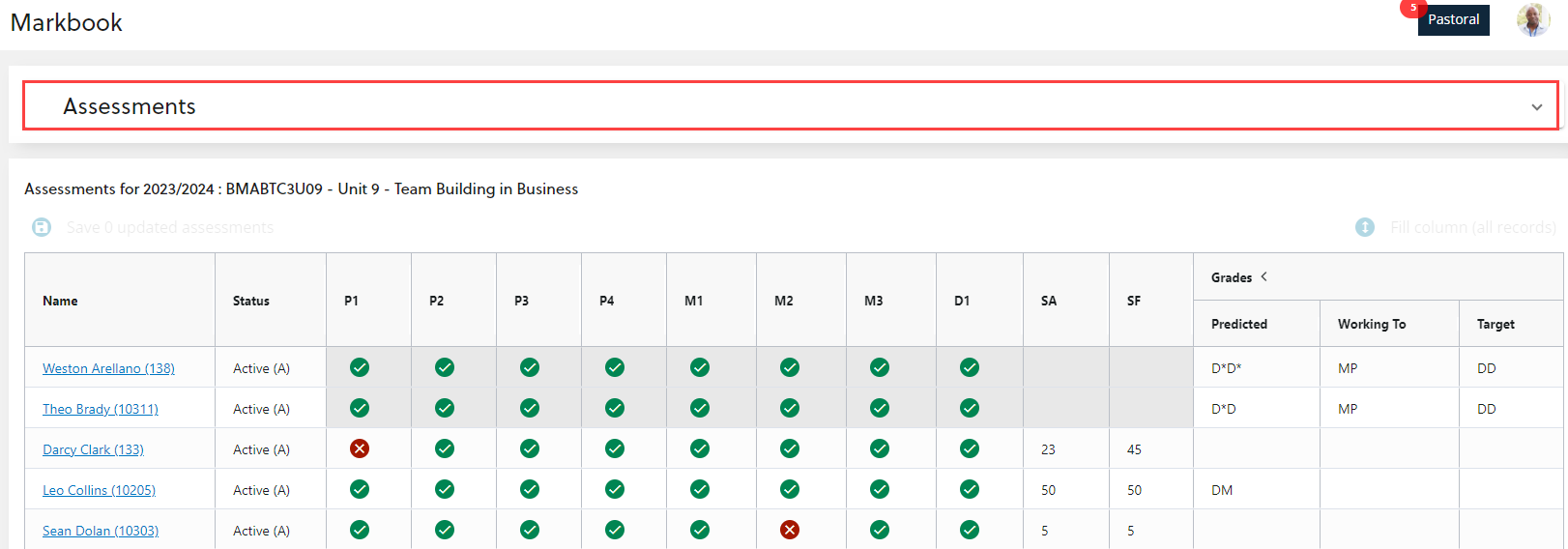
After you search, markbook displays the learners who match your selected filters. The search options are hidden to give more space for the markbook grid. You can reopen the search options from the assessments expander if you need to change your search, as shown in the image below.
Entering marks
You enter marks directly into the assessment cells in the markbook grid. The way you enter a mark depends on how the assessment is configured.
For numeric assessments, you select the assessment cell and enter the mark.
For pass or fail assessments, you select the assessment cell and choose the appropriate option.
When you enter or change a mark, the cell is highlighted in green. This helps you see which marks have changed since you last saved.
Saving mark changes
Mark changes are not saved automatically. After you enter or update marks, you need to save your changes.
The Save updated assessments button shows how many records have been updated since you last saved.
If you leave the page before saving, your unsaved changes are lost.
Filling a column
You can use Fill column when you need to enter the same mark for multiple learners in the same assessment column.
After you enter a mark for one learner, fill column copies that mark into the empty cells above and below the selected cell in the same assessment column. Existing marks are not overwritten.
Sorting and filtering the markbook grid
You can sort and filter the markbook grid to help you find the learner or assessment information you need.
To sort a column, select the column heading. Each selection moves through the available sort options:
-
Ascending
-
Descending
-
No sort
An arrow in the column heading shows that the column is sorted and indicates the sort direction.
You can also filter a column from the column menu. The filter options let you choose the logic for the filter and, where needed, enter a value.
You can combine up to two filter statements in one column by using AND or OR logic. For example, you might filter a column to show only learners who have a recorded mark that is not equal to 50.
You can apply filters to multiple columns. To remove all filters, select Clear all filters at the top of the markbook.