You can view and print reports for the learner using the appropriate buttons in the Reports group on the Learner ribbon.
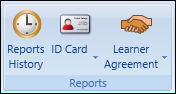
From the Reports ribbon group, you can:
 View reports history
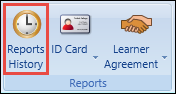
You can view reports for the learner by selecting the Reports History button on the Learner ribbon.
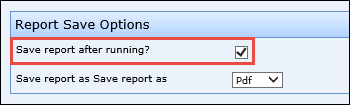
The Reports History window is displayed, with all reports that have been run for the learner displayed in the grid.
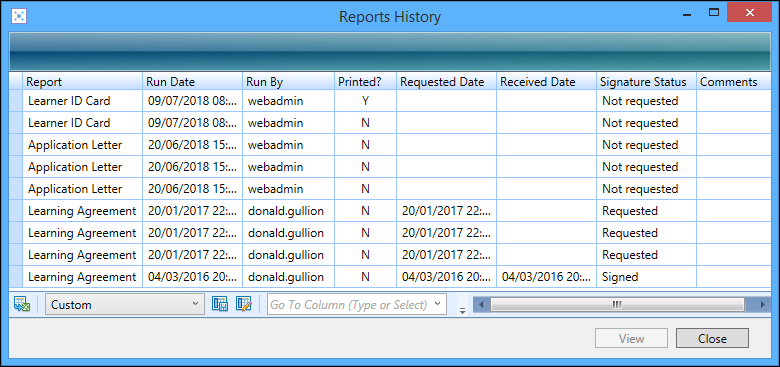
You can also view the document attached to a report (if available) by selecting the View button at the bottom of the Reports History window or selecting the report record in the grid.
Print ID cards
You can print learner ID cards by selecting the ID Card button on the Learner ribbon.
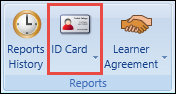
The document is automatically sent to the default system printer.
To display further options for the learner ID card, select the downwards arrow on the ID Card button.
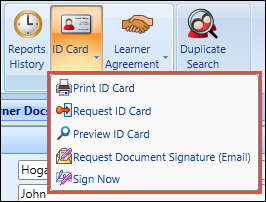
The following options are available:
- Print ID Card - sends the ID card to the default system printer
- Request ID Card - requests that the ID card is added to the batch printing queue for subsequent printing
- Preview ID Card - displays the Preview window, from which the ID card can be printed, exported, or sent to the batch printing queue
- Sign Now - opens the report so the learner can sign the report using the relevant device
Print learner agreements
You can print learner agreements, by selecting the Learner Agreement button on the Learner ribbon.
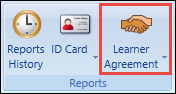
To display further options for the learner agreement, select the downwards arrow on the Learner Agreement button.
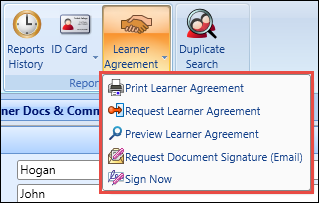
The following options are available:
- Print Learner Agreement - sends the learner agreement to the default system printer
- Request Learner Agreement - requests that the learner agreement is added to the batch printing queue for subsequent printing
- Preview Learner Agreement - displays the Preview window, from which the learner agreement can be printed, exported, or sent to the batch printing queue
- Sign Now - opens the report so the learner can sign the report using the relevant device