You can review learner progress on the Learner Progress screen that shows key information about a learner’s performance and activity.
You can review the following areas:
-
Support Needs
-
Attendance
-
Punctuality
-
Timetable
-
Enrolments
-
Exams
-
Markbook
-
ILP
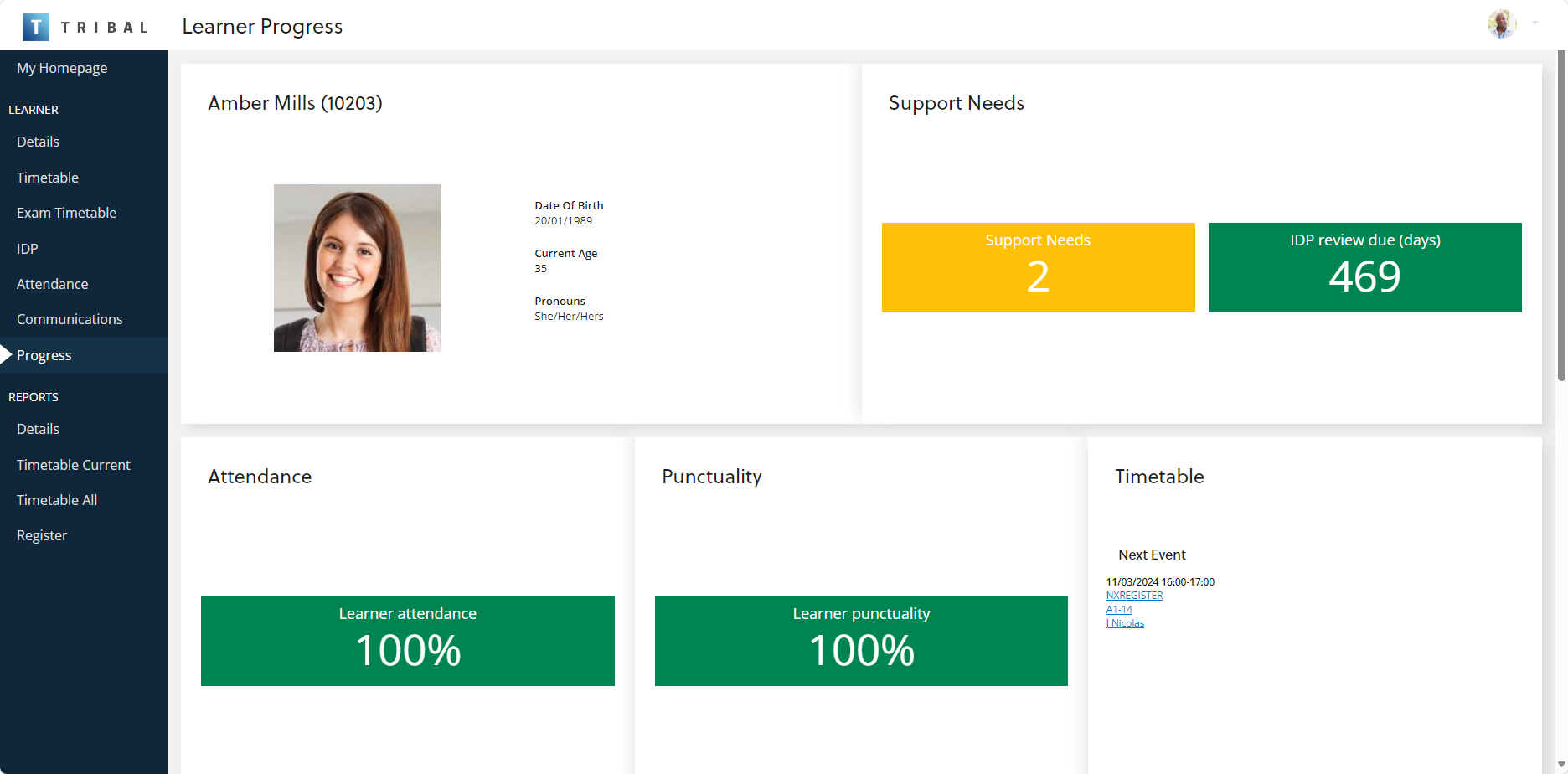
The image below shows an example of a learner progress screen for a learner.
Understand each section
The sections of the learner progress are as follows:
- Support Needs
-
The support needs section shows any recorded needs for the learner.
-
Panel colours vary depending on the learner’s institution and the number of recorded needs.
-
If the learner is in Wales, the section also shows the number of days until the next IDP review is due.
-
-
Attendance
-
The attendance section shows the percentage of sessions where the learner was marked present.
-
A colour indicator shows performance as follows:
-
Green - above target.
-
Amber - within acceptable range.
-
Red - below target.
-
-
Amber or red may indicate concerns about the learner’s attendance.
-
Punctuality
-
The punctuality section shows the percentage of attended sessions where the learner arrived on time.
-
A colour indicator shows performance:
-
Green - on target.
-
Amber - below target range.
-
Red - significantly below target.
Amber or red may indicate concerns about timekeeping and potential missed learning. -
-
Timetable
-
The timetable section shows the learner’s next scheduled session.
-
Enrolments
-
The enrolments section shows the number of active enrolments for the learner.
-
Exams
-
The exams section shows the number of upcoming exams for the learner.
-
Markbook
-
The markbook section provides a summary of recorded assessments.
It shows:
-
How many assessments have been passed.
-
How many have been failed.
-
How many are awaiting marking.
-
-
ILP (Individual Learning Plan)
-
The ILP section shows the status of reviews and targets as follows:
-
Reviews
Reviews require the learner to answer questions about:
-
Course experience
-
Progress
-
Support needs
Targets
Targets support the learner’s development and may relate to:
-
Study
-
Attendance
-
Behaviour
Bar chart indicators
-
R-Open - Reviews not yet started.
-
R-In - Reviews in progress.
-
R-Over - Overdue reviews.
-
T-Open - Targets not yet started.
-
T-In - Targets in progress.
-
T-Over - Overdue targets.
-